Bluesky Accessibility: Best Practices for Alt Text
Last updated: January 27, 2026
When you post images on Bluesky, adding alt text isn't just helpful - it's necessary. Alt text provides descriptions of images, making them accessible to users who rely on screen readers, including those who are blind or visually impaired. Bluesky even offers tools like the "Require alt text before posting" setting to ensure all images are described properly. Here's why alt text matters and how you can use it effectively:
- Alt Text Benefits: Makes content accessible for visually impaired users and improves post discoverability through search indexing.
- Bluesky Features: Includes the "ALT" badge for transparency and a mandatory alt text option to prevent posting without descriptions.
- How-To Add Alt Text: Easily add descriptions on desktop or mobile by clicking the +ALT button on uploaded images.
- Best Practices: Focus on describing key details, avoid redundancy (like "image of"), and write clear, concise descriptions. For example, instead of "dog", write "A golden retriever puppy sitting in a field of yellow daisies."
Alt text isn't just a feature - it's a way to ensure your content reaches everyone. Tools like TheBlue.social's Alt Text Generator can streamline this process, but always review and personalize descriptions to match your post's intent.
The Alt Scene: When and How to Write Alternative Text
Why Alt Text Matters for Accessibility
Alt text is a game-changer for accessibility. Without it, millions of users are left out. For those relying on screen readers to navigate social media, alt text is crucial. These tools convert image descriptions into spoken words, allowing blind and visually impaired users to engage with visual content just like everyone else does instantly [2][5].
It’s not just about blindness - alt text also helps low-vision users by explaining finer details, supports users with cognitive disabilities by adding context, and even benefits fully sighted users when images fail to load [2][3][6]. Recognizing these benefits is the first step toward making your Bluesky posts more inclusive with well-thought-out alt text.
Alt Text's Function in Social Media
On Bluesky, alt text plays two major roles. First, it makes your posts accessible to the platform’s expanding user base of 35.2 million users. Second, it improves discoverability - Bluesky indexes alt text for search, so posts with clear descriptions show up in search results for those terms [2][4]. Custom feeds can even be set up to display only posts with alt text, filtering out inaccessible content entirely [4].
Alt text describes images for blind and low-vision users, while also providing context for everyone [3].
These benefits are amplified by Bluesky’s thoughtful alt text tools.
Bluesky's Alt Text Features
Bluesky goes beyond the basics to ensure alt text is both easy to use and impactful. One standout feature is the "ALT" badge that appears on images with descriptions. Anyone can click this badge to read the alt text, making it transparent and helpful for all users [1][3]. Unlike many platforms, Bluesky supports alt text for static images, GIFs, and even videos, broadening its accessibility reach [1].
The platform’s most effective tool is the "Require alt text before posting" option, located in Settings > Accessibility. When activated, this feature blocks you from posting any image without a description - there’s no way to skip it [1][2]. Among major platforms, only Bluesky and X/Twitter offer such a strict system, but Bluesky’s approach stands out because it’s impossible to bypass [1].
How to Add Alt Text to Your Bluesky Posts
Adding alt text on Bluesky is simple, though the steps vary slightly depending on whether you're using a desktop or mobile device. Here's how to do it:
Adding Alt Text on Desktop
After uploading your image, click the +ALT button in the upper-left corner of the thumbnail. This will open a text field where you can type a description of the image. Once you've entered the alt text, click Save. You'll notice the +ALT button changes to a checkmark, confirming the description has been added.
Bluesky supports alt text for JPG and PNG images, videos, and GIFs from its built-in library. However, keep in mind that alt text cannot be edited after posting. If you need to fix an error, you'll have to delete the post and reupload the content.
Adding Alt Text on Mobile
The process on mobile is almost identical. Start by uploading your image, then tap the +ALT button in the top-left corner of the thumbnail. For videos, you'll find the alt text option just below the video. Enter your description, tap Save (the button will change to a checkmark), and then tap Post to publish.
Turning On the "Require Alt Text" Setting
To make sure all your posts are accessible, you can activate Bluesky's "Require alt text before posting" feature. On desktop, go to Settings > Accessibility and toggle the "Require alt text before posting" switch. On mobile, open the menu, select Settings > Accessibility, and toggle the same switch. Keep in mind, this setting needs to be enabled separately on each device.
"When Bluesky's alt text reminder is activated, users will be required to add alt text to all images before publishing a post. There is no option to ignore it like there is on Twitter/X." - Accessible Social
Once this feature is turned on, the Post button will remain disabled until alt text is added to every image. This ensures your posts comply with accessibility standards and are more inclusive for all users.
Best Practices for Writing Alt Text
Basic Principles of Alt Text
When creating alt text, think of it as describing an image to someone over the phone. Focus on what’s essential for understanding the image’s purpose, rather than getting bogged down in unnecessary details. The goal is to convey the image’s meaning or context in a way that’s clear and helpful.
Write in clear, grammatically correct sentences, starting with the most important information. This allows screen reader users to quickly understand the image and move on if they choose [2].
Remember, you don’t need to describe every single detail. Instead, aim to communicate what makes the image relevant. For example, the color of someone’s shirt is only worth mentioning if it’s important to the message or context of the post [2].
What to Include in Alt Text
If your image contains text, make sure to transcribe any relevant text into the alt text field. Screen readers can’t interpret text embedded in images, so this step is critical for accessibility [2].
Be specific but concise. For instance, instead of simply saying “dog,” provide more context: “A golden retriever puppy sitting in a field of yellow daisies, looking up at the camera” [4]. Include key details like actions, emotions, or objects that add meaning. If color plays a role in understanding the image - such as distinguishing between products or highlighting something specific - mention it. Otherwise, leave it out [2].
For videos on Bluesky, use the same approach by describing key visual elements in the written video description field [1].
This thoughtful approach not only supports screen reader users but can also improve your post’s visibility, as previously discussed.
Common Alt Text Mistakes
Avoid starting with phrases like “image of” or “picture of.” Screen readers already announce the element as an image, so these are redundant [4][3]. Similarly, steer clear of vague descriptions such as “mountain” or “hiking,” as they lack the context visually impaired users need [4].
Don’t repeat information already available in the main post, and resist the urge to over-describe irrelevant details. As Manning Krull explains:
Simple and brief are fine, as long as you cover the most important, most meaningful things [2].
When using GIFs from Bluesky’s library, delete autogenerated alt text and write your own. The platform’s automated descriptions are often inaccurate or miss the point entirely. Krull emphasizes:
Leaving the bad [autogenerated] alt text in there is arguably worse than including none at all [2].
If you want to add humor or hidden messages to your alt text, include them after the accurate description, never as a replacement [2]. For purely decorative images that don’t add any meaningful information, follow general accessibility guidelines and use empty alt text. However, keep in mind that most social media platforms require some form of description for all images.
Alt Text Examples: Good vs. Poor
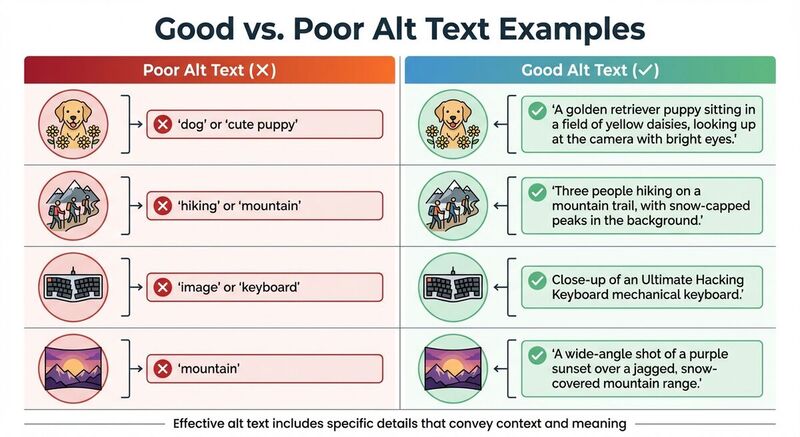 Examples can effectively illustrate the difference between well-written and ineffective alt text. Below is a table that compares vague descriptions with more detailed and descriptive alt text for the same image subjects.
| Image Subject | Poor Alt Text | Good Alt Text |
|---|---|---|
| A puppy in a field | "dog" or "cute puppy" | "A golden retriever puppy sitting in a field of yellow daisies, looking up at the camera with bright eyes." |
| People hiking | "hiking" or "mountain" | "Three people hiking on a mountain trail, with snow-capped peaks in the background." |
| A computer component | "image" or "keyboard" | "Close-up of an Ultimate Hacking Keyboard mechanical keyboard." |
| A nature scene | "mountain" | "A wide-angle shot of a purple sunset over a jagged, snow-covered mountain range." |
These comparisons help clarify what makes alt text effective and why vague descriptions fall short.
Good Alt Text Examples
Effective alt text goes beyond generic descriptions by including specific details that enhance accessibility and understanding. For instance, the golden retriever example works well because it captures the breed, the setting (a field of yellow daisies), and the puppy's expressive gaze. This level of detail not only helps users relying on screen readers visualize the image but also conveys the mood and context.
Similarly, the hiking example illustrates how including details like the number of people, the mountain trail, and the snow-capped peaks provides meaningful context without being overly wordy. These specifics make the image more relatable and informative for users.
Poor Alt Text Examples
On the other hand, vague or overly simplistic alt text - like "image", "photo", or "dog" - does little to convey the content or significance of an image. Such labels are redundant since screen readers already announce the presence of an image, and they fail to provide any meaningful information.
Manning Krull, a digital designer with a focus on accessibility, highlights the pitfalls of autogenerated alt text, particularly for GIFs:
Leaving the bad [autogenerated] alt text in there is arguably worse than including none at all [2].
When alt text lacks essential details like the breed of a dog, the setting, or the action taking place, it misses the opportunity to communicate the image's unique value and context.
Tools for Creating Alt Text
Crafting alt text from scratch can feel like a chore, but the good news is there are tools out there to make the process faster without cutting corners on quality or accessibility.
TheBlue.social Alt Text Generator
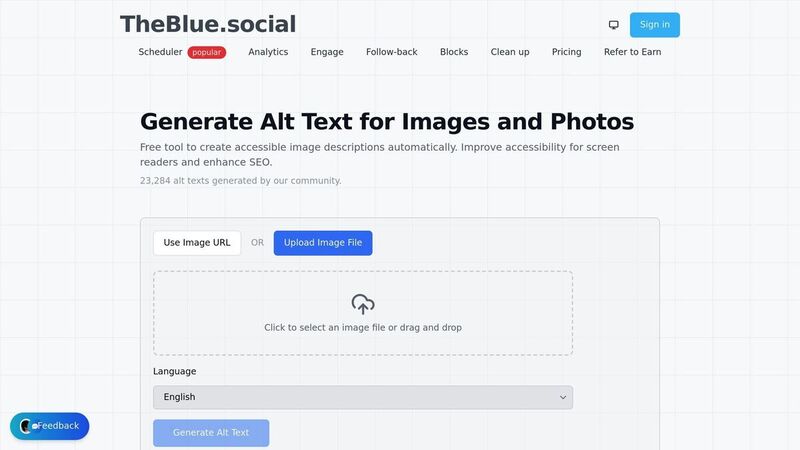
TheBlue.social provides a free Alt Text Generator designed specifically for Bluesky users. Unlike generic AI tools, this one tailors its descriptions to match Bluesky’s conversational tone and community vibe. Just upload an image or paste a Bluesky image URL, and it generates descriptions ready to use.
The tool supports multiple languages and prioritizes privacy - your images aren’t stored, and no personal data is collected. However, it’s always a good idea to review and tweak the generated descriptions. While the tool gives you a strong starting point, you’ll want to make sure the alt text reflects the exact meaning or emotion you’re aiming to convey. As the Bluesky Accessibility Team emphasizes:
Adding alt text to your Bluesky images isn't just good practice - it's essential for building an inclusive community [7].
Additional Accessibility Tools from TheBlue.social
TheBlue.social doesn’t stop at alt text generation. They also offer an OCR text extraction tool. This tool converts text within images - like screenshots or infographics - into readable descriptions. It’s a lifesaver when you’re dealing with images that contain written information, allowing you to quickly extract and incorporate the text into your alt descriptions.
These tools pair seamlessly with Bluesky’s built-in accessibility features, such as the "Require alt text before posting" option found under Settings > Accessibility. By combining TheBlue.social’s tools with Bluesky’s reminders, you can create a workflow where accessibility becomes second nature, not an afterthought.
Conclusion
Alt text plays a crucial role in ensuring your Bluesky content is accessible to everyone. Whether users depend on screen readers, have low vision, or encounter connectivity challenges, alt text turns visual content into something more inclusive. As Manning Krull aptly states:
Alt text, and accessibility in general, are our ethical responsibilities to people with disabilities. [2]
Crafting meaningful alt text is essential for both accessibility and discoverability on Bluesky. Focus on describing the image’s purpose by emphasizing key details, such as important visual elements, colors, emotions, or any text within the image. Steer clear of repeating information already in your post, and always double-check autogenerated descriptions - especially for GIFs, which often miss important context.
To simplify this process, take advantage of tools like TheBlue.social's free Alt Text Generator and OCR text extraction tool. Combine these with Bluesky's built-in "Require alt text before posting" reminder (found under Settings > Accessibility) to create a workflow that makes accessibility effortless. These resources help ensure your posts consistently adhere to accessibility standards.
With Bluesky now boasting over 35.2 million users as of April 2024, your thoughtful alt text can help your content connect with a wide and diverse audience. By prioritizing accessibility, you contribute to building a more inclusive online community.
FAQs
Why is adding alt text important for accessibility on Bluesky?
Alt text plays a crucial role on Bluesky by making images accessible to users with visual impairments or disabilities. Screen readers use alt text to describe images aloud, allowing individuals who cannot see the content to understand it. This simple addition helps create a more inclusive environment for everyone.
It’s not just about accessibility for those with visual impairments - alt text also supports users with low vision or cognitive disabilities by offering clear descriptions of visual elements. Plus, it can enhance the visibility of posts, making them easier to discover and interact with. By including alt text, you contribute to making Bluesky a platform that’s welcoming and usable for all.
What’s the best way to write effective and concise alt text on Bluesky?
To craft effective alt text, focus on delivering a clear and accurate description of the image in 125 characters or fewer. Stick to the essential details that convey the image's purpose without adding unnecessary specifics.
For instance, instead of writing, "A sunny day in New York City with people walking in Central Park", simplify it to "People walking in Central Park on a sunny day." This approach keeps the description concise while still providing meaningful context.
By keeping alt text short and relevant, you improve accessibility for visually impaired users, ensuring your content is more inclusive and user-friendly.
What tools can help create effective alt text for Bluesky posts?
Creating alt text for Bluesky posts can be easier with the help of tools that support accessibility. For instance, automated alt-text generators can assist in crafting detailed and inclusive image descriptions. Some platforms and tools also prompt or require users to add alt text when posting, ensuring content is accessible to everyone. These resources not only simplify the process but also help you stick to accessibility guidelines without taking up too much time.