Free Tools for Alt Text Generation in 2025
Last updated: January 12, 2026
Alt text makes online images accessible for 1.3 billion people with disabilities, improving content engagement and search visibility. Despite its importance, over half of websites still lack alt text. In 2025, free AI-powered tools make creating high-quality alt text quick and easy. Here’s a look at five standout options:
- TheBlue.social: Generates platform-specific alt text, supports multiple languages, and prioritizes privacy.
- AllAccessible: Offers WCAG-compliant alt text with multiple suggestions per image.
- Superframeworks: Focuses on SEO, allowing keyword input for optimized alt text.
- Writer: Part of a larger content suite, ideal for managing multi-platform campaigns.
- RyRob: Simple and user-friendly, perfect for bloggers and solo creators.
Each tool caters to different needs, making it easier than ever to add meaningful descriptions to your images.
EASILY SEO-Optimize Image Alt Text for FREE with the AI Image Alt Text Plugin
How to Choose Free Alt Text Generation Tools
Not all free alt text generators are created equal. Finding the right one depends on your content creation process, the platforms you use, and how much control you need over the final output. Here are some key points to guide your decision.
Character limits matter. Most platforms recommend keeping alt text between 80 and 125 characters, though some allow longer descriptions. To avoid your descriptions being cut off mid-sentence, look for tools that let you set specific character limits. For instance, TheBlue.social's alt text generator lets you customize character limits for different social media platforms.
Privacy policies are another big factor. Some tools temporarily cache images for a short time (like 40 seconds) before deleting them, while others might retain image URLs or descriptions even after processing. To protect your data, choose tools that clearly state they don't store images permanently and use HTTPS encryption when uploading files.
Tone and style options help maintain your brand's voice. Whether your brand leans professional, casual, or technical, tools with tone customization can make a big difference. This is especially useful if you’re managing multiple accounts with varying audiences.
OCR capabilities (Optical Character Recognition) are a must if you often share screenshots, memes, or graphics with text. Tools with built-in OCR can extract and describe text in images, making sure users with screen readers can access all the information embedded in your visuals.
Best Free Alt Text Generation Tools in 2025
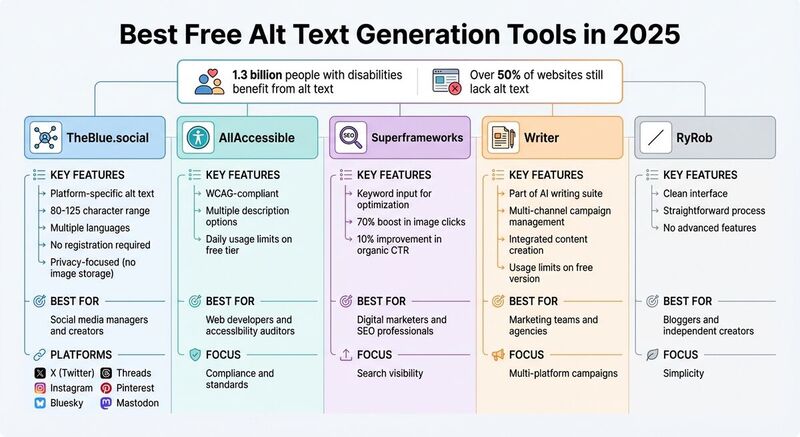 Here’s a closer look at five free tools designed to create alt text for social media, marketing, and blogging. Each tool offers unique strengths, making them valuable for different types of users.
TheBlue.social Generate Image Alt Text
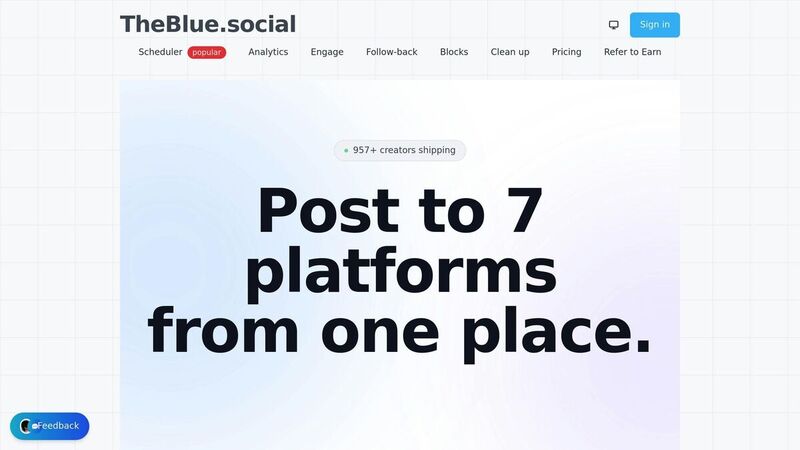
TheBlue.social's alt text generator is tailored for social media users who need quick, platform-friendly descriptions. It keeps alt text within the recommended 80–125 character range, supports multiple languages, and handles images in real time without storing them, ensuring privacy.
What sets this tool apart is its ability to generate descriptions that align with the tone of social media content. This makes it a go-to option for community managers and creators who frequently post on platforms like X (Twitter), Threads, Instagram, Pinterest, Bluesky, and Mastodon. Plus, it’s completely free, requires no registration, and integrates seamlessly with TheBlue.social’s cross-posting scheduler.
Best for: Social media managers and creators who need fast, platform-specific alt text while maintaining privacy.
AllAccessible Free AI Alt Text Generator
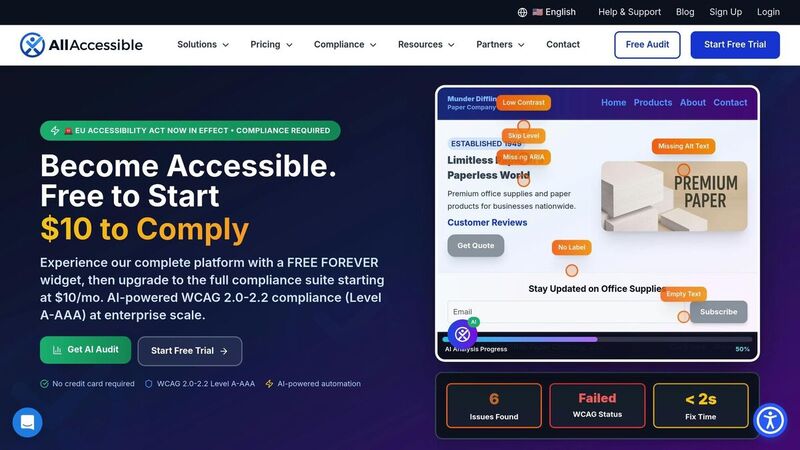
AllAccessible focuses on producing WCAG-compliant alt text, offering multiple description options for each image. This flexibility is great for tailoring content to different audiences or platforms, especially when posting the same image across multiple channels.
The tool is simple to use: upload an image and receive several alt text suggestions in seconds. However, the free tier includes daily usage limits, making it more suitable for smaller-scale projects or occasional use.
Best for: Web developers and accessibility auditors ensuring content meets WCAG standards and passes accessibility checks.
Superframeworks Alt Text Generator
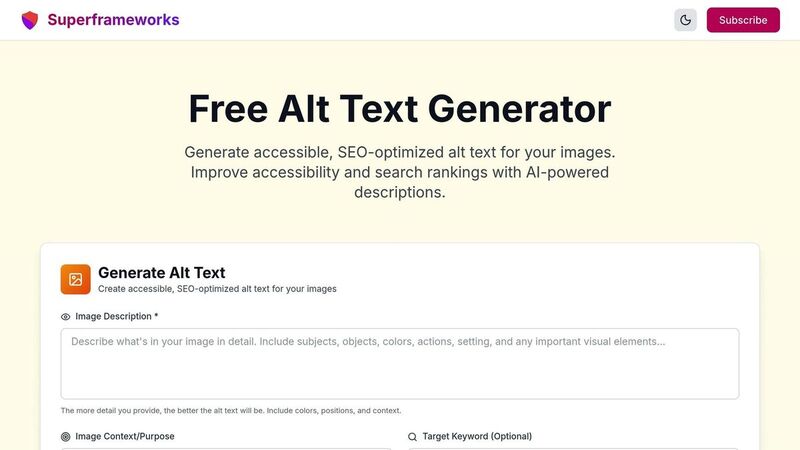
Superframeworks takes an SEO-driven approach, allowing users to input keywords to create optimized alt text. This can boost image clicks by up to 70% and improve organic click-through rates by 10%[1]. It’s a strong option for marketers aiming to enhance image visibility in search results.
Best for: Digital marketers and SEO professionals looking to improve image rankings and drive organic traffic.
Writer Alt Text Generator Agent
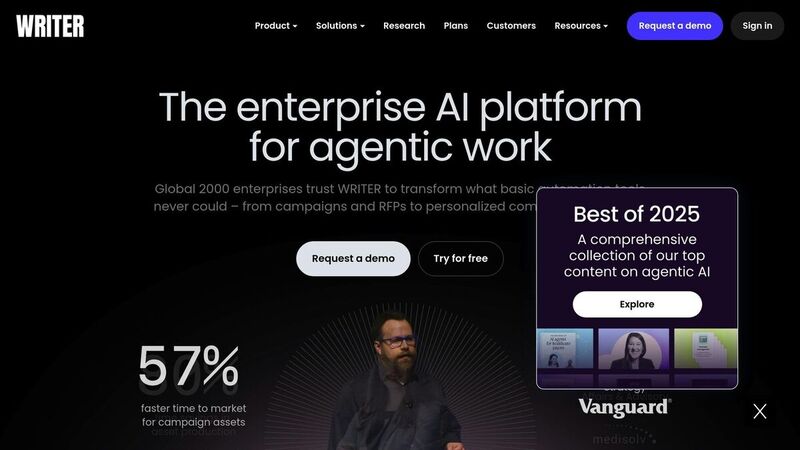
Writer’s alt text generator is part of a larger AI writing suite, designed for teams managing multi-channel campaigns. It allows users to create alt text alongside other content like captions, headlines, and social media posts, all within a single platform. This integration simplifies workflows and keeps everything organized.
The free version comes with usage limits, which may not suit high-volume users. However, for marketing teams juggling integrated campaigns, the ability to handle everything in one place is a major advantage.
Best for: Marketing teams and agencies managing multi-platform campaigns who value streamlined content creation.
RyRob Free Image Alt Text Generator
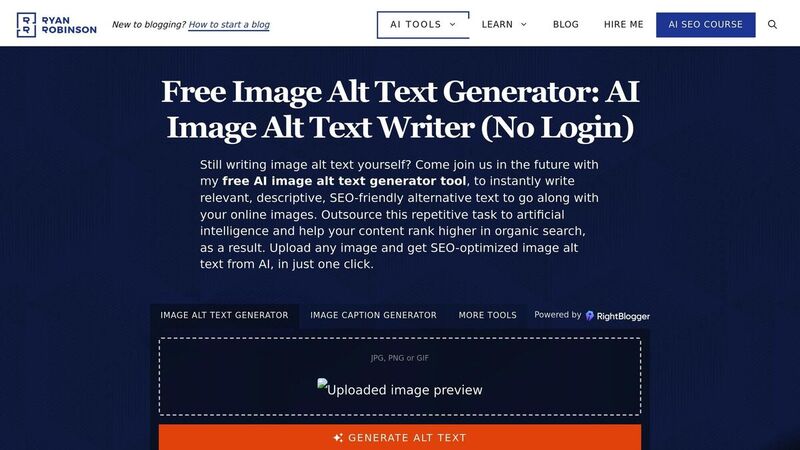
RyRob offers a straightforward solution for bloggers and solo creators. Its clean interface makes it easy to upload an image, generate a description, and copy it into your post. While it doesn’t include advanced features like keyword optimization, it’s perfect for users seeking a simple way to enhance accessibility.
This tool is particularly helpful for repurposing blog graphics or screenshots, providing a no-fuss approach to alt text creation.
Best for: Bloggers and independent creators who need a quick, easy way to generate alt text for social media and blog content.
How to Add Free Alt Text Tools to Your Workflow
Integrating free alt text tools into your workflow can make your posts more accessible without adding complexity. The process varies depending on the type of content you're working with - whether it's a single image, a text-heavy graphic, or content scheduled for multiple platforms. Here's how to tailor your approach for different scenarios.
Single-Image Posts
For individual images, the process is simple: upload your image to a free tool, generate the alt text, and then refine it manually. Think of AI-generated alt text as a first draft. As Tamara Biljman, Head of Content Marketing at Sendible, points out: "A caption is topic-first, and alt text is image-first" [10]. This means your alt text should focus on describing the image itself, not just repeating the topic of your post.
When editing, make sure to include key details like the subject, action, and any essential context. For example, if you're posting a product photo, describe features like color and positioning. Skip phrases like "image of" or "picture of", as screen readers already identify it as an image [6]. Also, remember to end the description with a period so screen readers pause appropriately [6].
If your image contains text, such as a quote or announcement, make sure that text is fully included in the alt text description [7].
Text-Heavy Graphics and Screenshots
For images with a lot of text, like banners or screenshots, a bit more effort is needed. Use OCR tools to extract the text from the image. Tools like TheBlue.social's OCR tool can make this step much easier [3][5]. Once you’ve extracted the text, refine it into a concise summary that fits within the 80–125 character range recommended for platforms like Bluesky [2].
For example, if you're posting a screenshot of a tweet, your alt text should include the tweet's content and the author's name, rather than just stating it's "a screenshot of a tweet." Harvard Digital Accessibility Services emphasizes that alt text should not only describe the image but also explain its relevance to the post's content [6]. For promotional banners, describe the purpose clearly, like: "A promotional banner for a winter sale featuring the text…" [4].
Multi-Platform Posting
When you're posting across multiple platforms, consistency and efficiency are key. Tools like TheBlue.social's cross-posting scheduler allow you to create alt text once and use it across platforms like X (Twitter), Threads, Instagram, Pinterest, Bluesky, and Mastodon. This eliminates the need to manually add alt text for each platform, saving time and effort.
Make sure your alt text fits the character limits for each platform. For instance, Instagram and Facebook work best with descriptions around 100 characters, while X allows up to 1,000 characters [9]. Avoid using emojis in alt text, as screen readers will read them out loud, which can confuse or frustrate users [8]. By embedding alt text creation into your scheduling process, you ensure accessibility becomes a natural part of your content strategy rather than an afterthought.
Conclusion
Making your content accessible isn’t just the right thing to do - it’s a smart way to boost engagement. For the 1.3 billion people worldwide with disabilities, alt text is a lifeline for understanding visual content. Yet, with more than half of websites still lacking alt text, there’s a real chance to stand out and connect with audiences others are missing[1].
Thanks to free tools available in 2025, adding alt text has never been easier. Whether you’re sharing a single image or managing content on multiple platforms, AI-powered tools can generate accurate alt text in seconds, saving you hours of effort[1]. For example, TheBlue.social's alt text generator helps you create descriptions quickly, and when used alongside a cross-posting scheduler, you can ensure your alt text is applied consistently across platforms like X (Twitter), Threads, Instagram, Pinterest, Bluesky, and Mastodon.
Chris Cownden, a web design agency owner, shared his experience:
"As a web design agency owner, this was a no brainer purchase and has already saved me 150 hours of manually writing alt text."[1]
The Bluesky Accessibility Team also highlights the importance of this practice:
"Adding alt text to your Bluesky images isn't just good practice - it's essential for building an inclusive community."[2]
To get started, try adding alt text to your next post. Review the AI-generated suggestions, tailor them to fit your brand’s tone, and watch how this small step strengthens your connection with your audience over time.
FAQs
What should I consider when choosing a free alt text generator?
When choosing a free alt text generator, it’s important to start by understanding what you need. If you’re after a quick and easy way to create alt text for individual images, look for tools that work directly in your browser. The best options will support common image formats like JPG or PNG and give you results instantly. For social media creators, tools designed for platforms like X, Threads, Instagram, and Bluesky can make your workflow much smoother.
If you’re managing a larger volume of images, consider tools that offer bulk-processing features or can integrate with platforms like WordPress or Google Docs. Concerned about privacy? Opt for tools that ensure secure processing and don’t store your data. Some tools even let you tweak the language, tone, or style of descriptions, helping you match your alt text to your accessibility and SEO objectives.
By keeping simplicity, scalability, privacy, and customization in mind, you can find the alt text generator that fits seamlessly into your content creation routine.
What should I know about privacy when using free tools to generate alt text?
When you use free alt text generators, your images are typically sent to an external AI service for processing, meaning they leave your device. This raises privacy concerns about how your data is handled - whether it's stored, shared, or used in other ways. Many of these tools don’t make it clear if they retain images for training purposes or share them with third parties, which could put sensitive information at risk.
To protect your privacy, avoid uploading images that include personal details, proprietary information, or anything confidential. If privacy is a priority, choose tools that clearly state they have no data retention policies or allow processing directly on your device rather than through the cloud. For businesses or organizations, make sure the tool adheres to regulations like CCPA or GDPR and confirms that images are deleted after processing. Remember, these tools are designed for quick tasks, not as secure storage options.
How can I create alt text that aligns with my brand's tone and style?
To make sure your alt text aligns with your brand’s tone and style, start by setting clear guidelines. Create a straightforward cheat sheet that highlights your preferred vocabulary, tone (whether it's friendly, professional, or witty), and any essential brand-specific terms. If you're using an AI tool to generate alt text, include these details in your prompt or choose a style option if the tool offers one.
For a quick start, try a free AI-powered alt text generator like TheBlue.social’s Generate Alt Text for Images tool. After generating a draft, tweak the wording to better fit your brand’s voice. Add specific adjectives or even a call-to-action that complements your social media approach. A quick manual review ensures the text stays concise (under 125 characters), descriptive, and accessible for screen-reader users while staying true to your messaging.
To wrap it up, use a simple checklist: Is the description clear and accurate? Does it match your brand’s tone? Does it avoid unnecessary filler? Following these steps helps you balance accessibility with consistent branding in your alt text.