Top Tools for Alt Text Compliance Verification
Last updated: December 31, 2025
Alt text is essential for making images accessible to people using screen readers and meeting legal accessibility standards like WCAG and Section 508. With stricter ADA enforcement and new laws in 2025, ensuring alt text compliance is more important than ever. Below are tools to help you verify and improve alt text for accessibility and SEO:
- TheBlue.social: Free AI-powered alt text generator for social media platforms like Instagram, X, and Threads.
- WAVE: A browser extension that flags missing or insufficient alt text with visual overlays.
- axe DevTools: Developer-focused tool for automated accessibility scans integrated into workflows.
- Google Lighthouse: Built-in Chrome tool for quick, free accessibility audits.
- AltText.ai: AI-based tool for bulk alt text generation, ideal for e-commerce and large-scale image libraries.
Quick Comparison
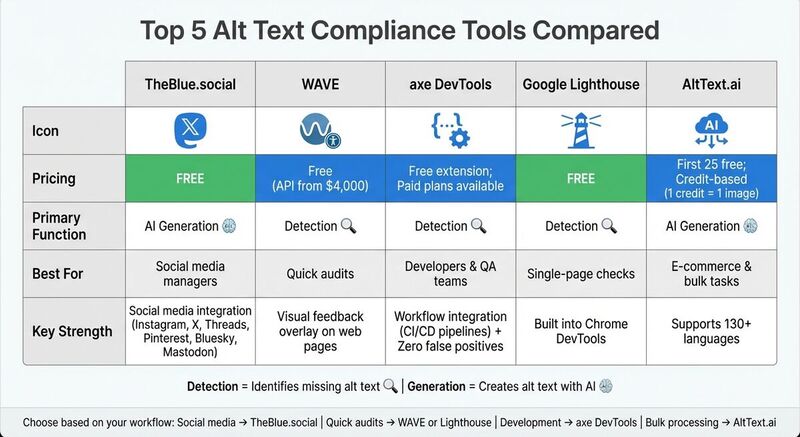
| Tool | Pricing | Function | Best For | Strength |
|---|---|---|---|---|
| TheBlue.social | Free | AI Generation | Social media managers | Social media integration |
| WAVE | Free (API from $4,000) | Detection | Quick audits | Visual feedback overlay |
| axe DevTools | Free extension; Paid plans | Detection | Developers & QA | Workflow integration |
| Google Lighthouse | Free | Detection | Single-page checks | Built into Chrome |
| AltText.ai | First 25 free; Credit-based | AI Generation | E-commerce & bulk tasks | Supports 130+ languages |
Automation tools can streamline the process, but manual reviews are essential to ensure alt text is accurate and contextually meaningful. Proper alt text not only improves accessibility but also boosts SEO by enhancing image metadata. Start with tools like these to simplify compliance and improve user experience.
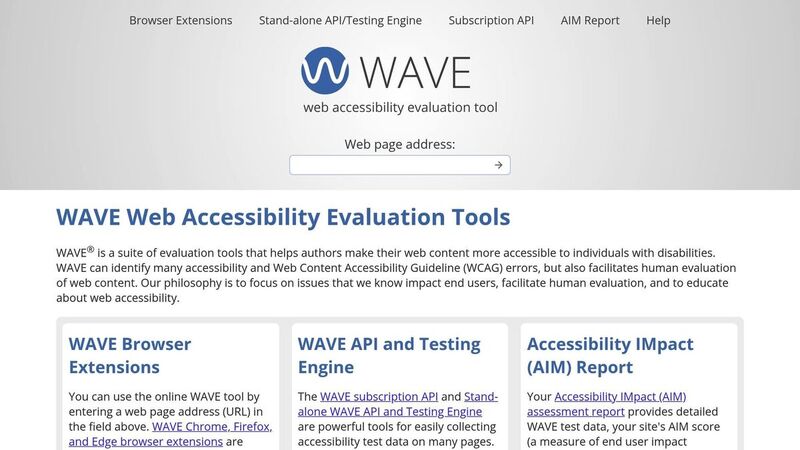
Fix alternative text issues using the free WAVE accessibility checker
Top Tools for Alt Text Verification
Finding the right tool for alt text verification depends on your workflow. Some tools focus on generating alt text using AI, while others audit web pages for missing or incorrect descriptions. Here's a mix of tools designed for creators, developers, and auditors.
Generate Alt Text for Images with TheBlue.social
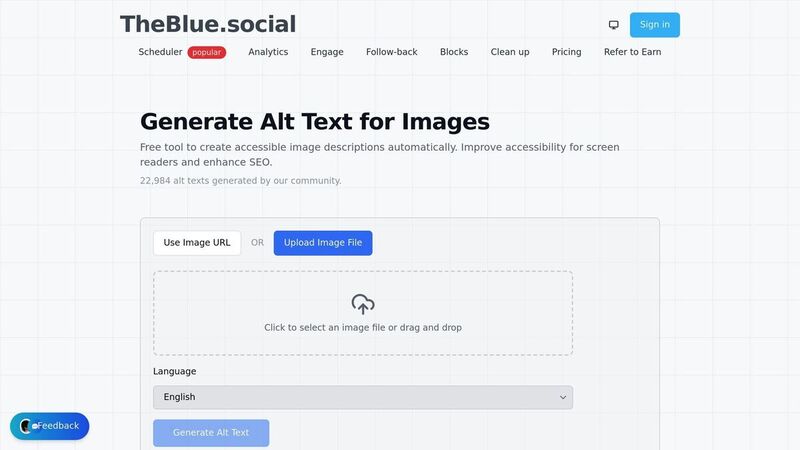
TheBlue.social's free alt text generator leverages AI to craft descriptive and accessible image captions. Unlike typical verification tools that only highlight missing alt text, this tool actively generates descriptions for platforms like X (Twitter), Threads, Instagram, Pinterest, Bluesky, and Mastodon.
It integrates seamlessly into your social media posting process, making it a go-to option for content creators and social media managers. The tool ensures alt text compliance across platforms without the hassle of switching between apps.
WAVE
WAVE (Web Accessibility Evaluation Tool) visually flags missing, redundant, or insufficient alt text by overlaying icons directly on web pages [3]. Available as a browser extension for Chrome, Firefox, and Edge, it works with both public and password-protected content.
The "Details" panel categorizes issues, helping content authors and editors prioritize fixes without needing to dive into code. While the browser extensions and online tool are free, advanced features like data collection through the WAVE API require a paid subscription [5].
axe DevTools
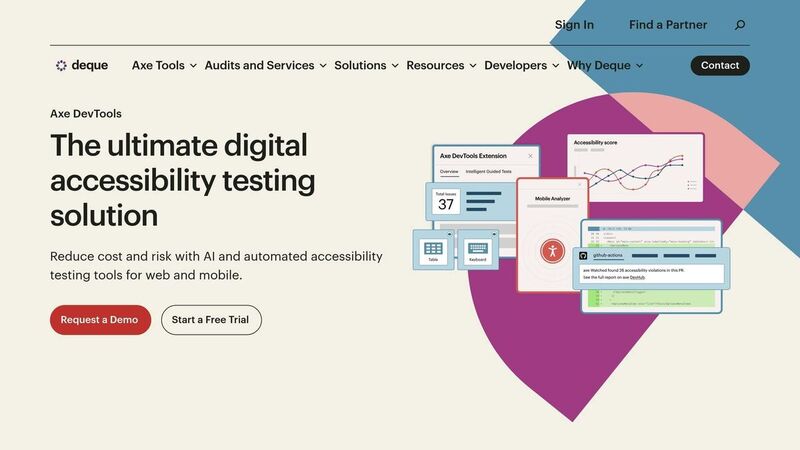
axe DevTools caters to developers, offering automated scans that integrate seamlessly into IDEs and build workflows. It claims to catch up to 80% of accessibility issues [6].
“Integrated automated scans minimize human oversight,” according to industry experts.
The free browser extension provides basic testing, while the paid Axe Platform includes features like Intelligent Guided Tests and enterprise monitoring. This makes it a powerful choice for teams managing accessibility on a larger scale, ensuring alt text accuracy.
Google Lighthouse
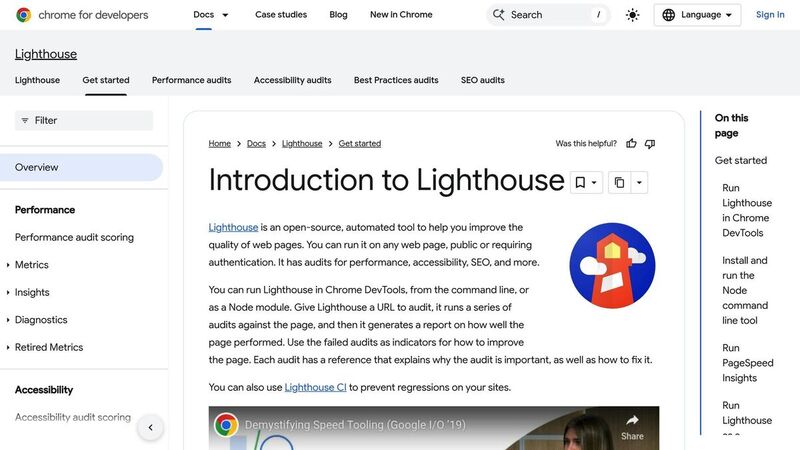
Google Lighthouse delivers free accessibility audits through Chrome DevTools, powered by the axe-core engine [7]. It provides a detailed score for each page and flags images missing alt attributes.
Since Lighthouse is built into Chrome, there's no need for additional installation. While it only audits one page at a time, it's perfect for quick checks during development or content updates. Plus, it evaluates performance and SEO alongside accessibility, offering a well-rounded view of your page's quality.
AltText.ai
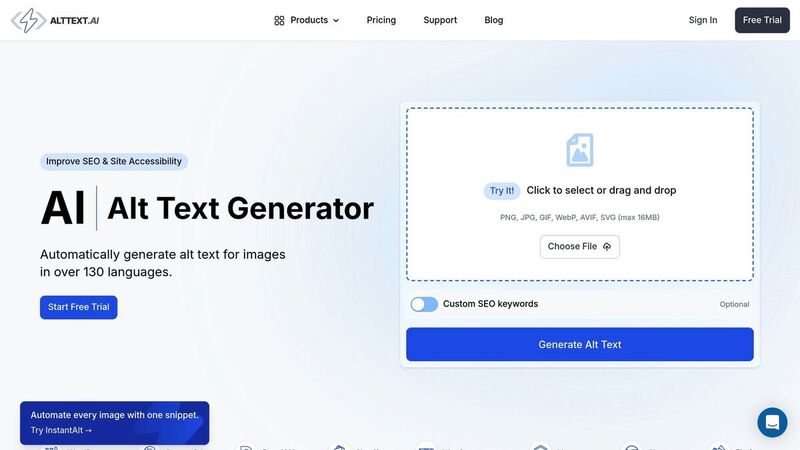
AltText.ai specializes in large-scale alt text generation using AI, supporting over 130 languages and integrating with platforms like WordPress and Shopify [1]. Designed for e-commerce sites and digital agencies, it’s built to handle extensive image libraries.
Alex Chen, Content Director at ModernHome, shared their results:
“We processed 12,000 product images in three hours.”
The tool works on a credit-based system (1 credit per image, with the first 25 free). Images are temporarily cached (about 40 seconds) to ensure privacy [1]. It also includes overwrite protection, safeguarding manually written alt text during bulk processing, making it a reliable solution for managing alt text at scale.
Feature Comparison
When choosing a tool, consider your workflow, budget, and whether you need detection, generation, or a mix of both.
Pricing models vary significantly. For individual users and small teams, free browser extensions like WAVE or axe DevTools are popular for manual checks. Larger organizations often prefer subscription-based APIs or site-wide monitoring platforms for bulk tasks. For instance, AltText.ai uses a credit-based system - 1 credit equals 1 image, with 25 free credits to start and unused credits rolling over monthly [1]. WAVE’s browser extensions are free, but API licenses start at $4,000 for 100,000 requests [8]. Meanwhile, Google Lighthouse remains entirely free through Chrome DevTools.
The level of automation is another key distinction. Detection tools like WAVE and axe DevTools flag missing or inadequate alt text but leave corrections to the user. AltText.ai, on the other hand, automates alt text generation, making it ideal for large-scale tasks [1]. axe DevTools claims to catch up to 80% of accessibility issues through automated scans [6], while WAVE uses "Alerts" to flag questionable alt text that requires human review [3].
Platform integration also plays a crucial role in streamlining workflows. AltText.ai integrates directly with Pinterest and supports bulk processing via CSV uploads, making it a strong choice for e-commerce platforms [1]. TheBlue.social caters to social media managers with cross-platform integration. Developers may prefer axe DevTools, which integrates seamlessly into CI/CD pipelines like Jenkins and GitHub Actions [11,13].
The table below highlights the main differences between these tools:
Comparison Table
| Tool | Pricing | Primary Function | Best For | Key Strength |
|---|---|---|---|---|
| TheBlue.social | Free | AI Generation | Social media managers | Streamlined social media tasks |
| WAVE | Free (API from $4,000) | Detection | Quick audits | Visual feedback overlay |
| axe DevTools | Free extension; Pro varies | Detection | Developers & QA | Zero false positives [6] |
| Google Lighthouse | Free | Detection | Single-page checks | Built into Chrome |
| AltText.ai | First 25 free; credit-based | AI Generation | E-commerce & bulk tasks | Supports 130+ languages [1] |
The accuracy of detection depends on each tool’s methodology. For example, axe DevTools guarantees "zero false positives", ensuring every flagged issue is a confirmed accessibility violation [6]. AltText.ai takes a different approach by using AI to generate "context-aware" descriptions, focusing on specific products, people, and scenes rather than relying solely on basic object detection [1]. WAVE, while effective at identifying clear errors, relies on human judgment to interpret its alerts.
Bob Andreasen highlighted the importance of automation in accessibility workflows:
"Having tools that allow you to automate the scans and integrate them into your build process helps a lot because you don't have to rely on somebody remembering to do it... it just happens automatically" [6].
Best Practices for Alt Text Verification
Creating a solid alt text workflow means blending AI tools, automated checks, and manual reviews. Start by using AI-powered tools like TheBlue.social's free alt text generator to draft initial descriptions for your social media images. This can save a lot of time compared to writing them manually. Then, run automated checks to catch obvious mistakes.
For visual feedback on missing or questionable alt text, tools like WAVE are incredibly helpful. If you're conducting a more technical audit, Google Lighthouse in Chrome DevTools is a great option. Just go to the Accessibility tab, click "Analyze page load", and review the list of elements missing proper alt attributes[9][10]. After these automated steps, it's critical to manually review each description.
"No automated evaluation tool can tell you if your site is accessible, or even compliant. Human testing is always necessary because accessibility is about the human experience" [4].
For functional images, make sure the alt text describes their purpose or action. Decorative images, on the other hand, should use empty alt attributes (alt="")[2]. When dealing with complex visuals like charts, focus on summarizing the main takeaway instead of detailing every element[2].
Keep alt text concise, ideally between 125 and 160 characters, and use custom prompts to align with your brand's tone[1]. Avoid redundant phrases like "image of" or "photo of", as screen readers already convey the element type[1]. Social media managers can benefit from tools that integrate alt text generation to ensure consistency across posts.
Finally, regular audits are key to maintaining accessibility. Use the WAVE "Code" button or the DevTools "Elements" tab to check images added via CSS, as these are often overlooked by basic scans[3]. Following this generate-verify-refine process ensures efficiency while keeping human review at the heart of accessibility efforts.
Conclusion
Alt text compliance isn't just about meeting legal standards - it’s about ensuring inclusivity for everyone, especially those who rely on screen readers or text-to-speech software. With new ADA enforcement and state-level accessibility laws set to roll out in 2025, organizations need to act now to make their images accessible to all[1].
The tools highlighted here can play an essential role in your accessibility efforts. For example, TheBlue.social's free alt text generator offers a quick way to draft descriptions for social media images. Meanwhile, verification tools like WAVE, axe DevTools, and Google Lighthouse help identify technical errors and missing attributes. While automation can handle a significant portion of the work, manual reviews remain critical for ensuring the descriptions are contextually accurate[6].
The ability to process thousands of images in just hours illustrates how these tools can transform what might seem like a daunting task into a manageable workflow.
But there’s more to alt text than compliance. It also improves digital performance. Properly written alt text enhances image metadata, which can boost SEO rankings. Additionally, it supports users with learning or reading disabilities by providing auditory reinforcement for visual content. Whether you're managing a massive e-commerce catalog or sharing daily updates on social media, these tools can help ensure every image is accessible to everyone.
FAQs
What are the key steps to ensure alt text is accessible and compliant?
Alt text plays a crucial role in making content accessible, especially for users who rely on screen readers. It should deliver clear, concise descriptions that explain the purpose of an image. Here’s how to get it right:
- Describe the image’s purpose, not just its appearance: Focus on what the image contributes to the content. For example, instead of saying "image of", describe its function, like "Chart showing quarterly sales growth."
- Keep it short but meaningful: Stick to descriptions under 125 characters so screen readers can process them easily.
- Use empty alt text (
alt="") for decorative images: This tells assistive technologies to skip over purely decorative visuals, reducing unnecessary distractions. - Avoid using file names as alt text: Replace auto-generated file names with clear, human-readable descriptions that make sense in context.
- Explain functional images: If an image acts as a button or link, describe its action rather than its appearance. For instance, "Download report" is more helpful than describing the button’s color or shape.
While automated tools can flag missing or incorrect alt text, manual reviews are essential to ensure the descriptions are accurate and contextually appropriate. Combining these practices with regular audits helps maintain compliance with accessibility standards.
How do AI tools like AltText.ai make generating alt text faster and easier?
AI tools like AltText.ai make it easier and faster to create WCAG-compliant and SEO-friendly alt text for images. These tools can integrate with platforms like WordPress or Shopify, or handle bulk uploads, allowing them to process thousands of images automatically. This eliminates the need for editors to manually write descriptions, cutting down on time, effort, and the chance of mistakes.
Using advanced AI, these tools analyze product details, identify people, and interpret scene contexts to generate natural, descriptive text that works well for both screen readers and search engines. They blend seamlessly into existing workflows, handle large image libraries with ease, and ensure the output meets WCAG 2.1 AA standards. What used to be a tedious task now becomes a quick and streamlined process.
Why is it important to manually review alt text even when using automated tools?
Automated tools for creating alt text can be a quick solution, but they often fall short when it comes to grasping the true purpose or context of an image. These tools might miss subtle details, like whether an image is purely decorative or carries significant meaning, and they can sometimes generate descriptions that are too vague or outright incorrect. That’s why having a human touch is so important.
A human reviewer can ensure that alt text is clear, relevant, and genuinely helpful for screen reader users. They’re able to spot errors that automated systems might miss, such as objects being misidentified or functional images lacking proper descriptions. Even when using tools like TheBlue.social’s Generate Alt Text, manual review remains an essential step to ensure the descriptions align with accessibility standards and enhance the user experience for everyone.