Ultimate Guide to Instagram Privacy Compliance
Last updated: January 28, 2026
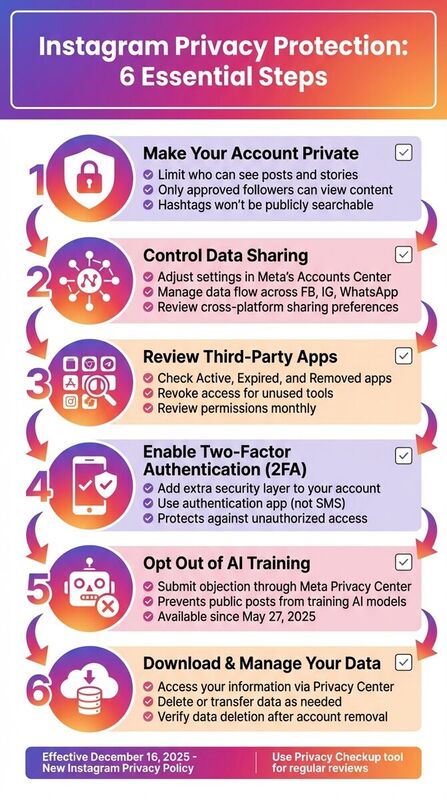
Instagram’s privacy settings have changed - here’s what you need to know to protect your data. Updates to Instagram’s privacy policy (effective December 16, 2025) have expanded data sharing across Meta platforms like Facebook and WhatsApp. Public posts are now being used to train AI models, and third-party tracking tools collect data even when you’re not on Instagram. If you don’t adjust your settings, your account could be exposed to risks like phishing, scams, and hyper-targeted ads.
What you can do:
- Make your account private: Limit who can see your posts and stories.
- Control data sharing: Adjust settings in Meta’s Accounts Center to manage how your data flows across platforms.
- Review third-party app permissions: Revoke access for tools you no longer use.
- Enable Two-Factor Authentication (2FA): Add an extra layer of security to your account.
- Opt out of AI training: Submit an objection through the Meta Privacy Center.
- Download and manage your data: Use Instagram’s tools to access, delete, or transfer your information.
Privacy laws like the California Consumer Privacy Act (CCPA) and new state regulations make it easier to control your data, but you’ll need to actively configure your settings. Start by using Instagram’s Privacy Checkup tool and regularly reviewing permissions, ad preferences, and connected apps. Stay proactive to keep your account secure and compliant.
2 Instagram Settings You MUST Change for Privacy & Security (2025 Update)
Setting Up Core Instagram Privacy Settings
To better protect your privacy on Instagram, the first step is adjusting the platform's default settings. By default, Instagram accounts are public, meaning anyone can view your posts, profile, and followers. Taking the time to tweak these settings helps safeguard your personal information and gives you more control over who can interact with your content.
Setting Your Account to Private
Switching to a private account ensures that only approved users can view your posts, stories, and follower list. Keep in mind, if your account is private, hashtags in your posts won’t make them publicly searchable - they’ll only be visible to those you’ve approved as followers [1].
On the mobile app: Tap your profile picture, open the menu, choose "Account privacy", and toggle on "Private account."
On a web browser: Click the gear icon on your profile, select "Privacy and Security", and check the box labeled "Private Account."
Important note: Changing to a private account doesn’t automatically remove your current followers. To remove someone, go to your profile, tap "Followers", find the person you want to remove, and select "Remove."
Controlling Post and Story Visibility
Even with a private account, you can fine-tune who sees your content. The "Close Friends" feature lets you share stories with a select group of people. To set this up, go to your profile menu and select "Close Friends", where you can add or remove users from your list.
Additionally, you can manage how others interact with your content. Adjust the "Sharing and Reuse" settings to block others from resharing or remixing your posts. Use the "Manage your tagged posts" tool to approve or remove tags, ensuring that unwanted photos or videos don’t appear on your profile [6].
Managing Activity Status and Messaging
Your online activity status is another area where privacy settings come into play. By default, Instagram shows when you were last active or if you're currently online. Disabling this feature hides your activity from others, but it also means you won’t see their statuses either. To turn it off, go to your profile menu, tap "Messages and Story Replies", then "Show Activity Status", and toggle it off.
For direct messages, you can control who can contact you by configuring your "Message Requests" settings. Use the "Hidden Words" feature to filter out offensive language or prevent requests from unknown users from showing up in your main inbox. Additionally, Instagram’s messaging system uses end-to-end encryption, so your private conversations remain secure between you and the recipient [3].
Managing Data Sharing and Third-Party Access
Instagram's connection to other Meta platforms and third-party apps means your data might be shared more broadly than you think. Taking charge of these connections strengthens your privacy and ensures you're keeping up with how Meta uses information across Facebook, Instagram, and Threads.
Reviewing and Removing App Permissions
Instagram organizes third-party apps into three categories: Active (currently accessing your data), Expired (permissions that lapse after 90 days of inactivity), and Removed (manually revoked access). Regularly checking these categories can help you identify apps you no longer use or even forgot about.
- On mobile: Go to Settings > Privacy > Account Center > Apps and Websites. Under Active, select any app and tap Remove.
- On desktop: Log in at instagram.com, click your profile photo, choose Settings, and then select Apps and Websites from the left menu. Find the app under Active and click Remove.
"It's essential that we protect the data people share with us. We also want to give people more control over the data they share with other apps and services." - Instagram [7]
Keep in mind that removing an app only stops it from accessing your data in the future. If you want to delete data the app has already gathered, you'll need to contact the app provider directly. And if you're revoking access because of suspicious activity, it's a good idea to change your Instagram password right away and enable two-factor authentication under Password & security.
Once you've tackled third-party apps, it's time to review how your data moves within Meta's ecosystem.
Controlling Data Shared with Meta Platforms
Meta's Accounts Center is where you manage how data flows between Instagram, Facebook, and Threads. This shared data helps personalize your experience, suggests connections, and enhances security. However, it also means that what you do on one platform can influence your experience on another.
To adjust ad personalization across platforms, go to Ad preferences in the Accounts Center. Under Ad settings, opt out of "Activity information from ad partners." You can also use the Off-Meta activity tool to see and manage data that third-party businesses share with Meta about your interactions outside the platform.
If you're concerned about your public content being used for AI training, you can submit an objection through the Meta Privacy Center [3].
Using Third-Party Tools Securely
When connecting third-party tools, like social media schedulers, it's important to understand how they handle your data. These tools often access your activity data, and while Meta requires its partners to follow specific rules, each tool has its own privacy policies and terms. Always review these policies before connecting any new tool.
For example, TheBlue.social is a cross-posting scheduler compatible with Instagram, X (formerly Twitter), Threads, Pinterest, Bluesky, and Mastodon. If you use tools like this, make sure to review app connections as described earlier. Also, enable Two-Factor Authentication via Accounts Center > Password and security for added protection, especially if your password is ever compromised.
Finally, if you're using Instagram or third-party tools on shared or public devices, always log out completely after your session. This simple habit can prevent unauthorized access and keep your account safe.
Meeting US Privacy Law Requirements
While Instagram's core settings help safeguard your day-to-day activity, understanding and complying with US privacy laws is essential for controlling how your data is used. Instagram, as part of Meta, operates under a patchwork of federal and state privacy laws across the United States. Meta emphasizes: “we don’t sell any of your information to anyone, and we never will” [2]. However, it’s still up to you to configure your settings to fully exercise your rights under these laws.
Instagram centralizes most privacy controls in its Accounts Center and Privacy Center. These tools allow you to access, download, transfer, or delete your personal information, ensuring compliance with regulations like the California Consumer Privacy Act (CCPA), Virginia’s Consumer Data Protection Act (CDPA), and similar state laws. For specific legal requests, you can also use Instagram’s dedicated Privacy Rights Requests portal [8].
California Consumer Privacy Act (CCPA) Requirements
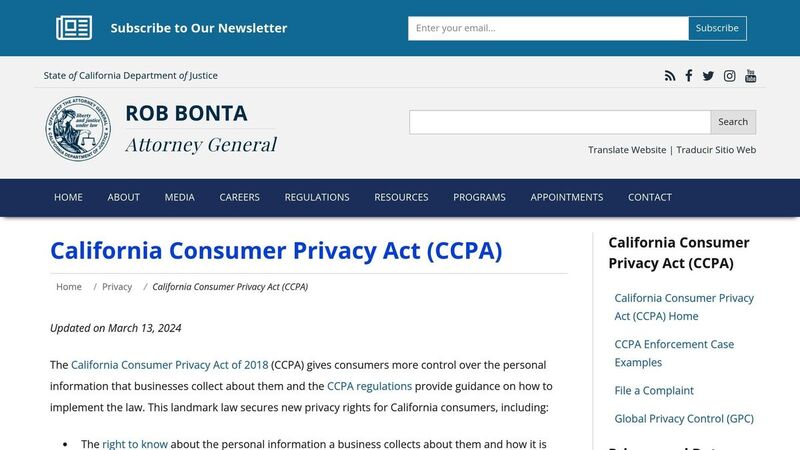
The CCPA grants California residents specific rights over their personal data, including the ability to know what information is collected, request its deletion, and opt out of data "sharing" for targeted advertising. Instagram’s privacy policy, effective December 16, 2025, provides tools to help you exercise these rights [2].
- Right to Know: Use the “Download your information” feature in the Privacy or Accounts Center [1][2].
- Right to Delete: Access the “Delete your information or account” option in the Accounts Center [2].
Detailed instructions for these processes can be found in the upcoming "Downloading, Deleting, and Managing Your Data" section.
One critical CCPA right involves opting out of data sharing for targeted ads. To do this, go to Settings > Accounts Center > Ad preferences > Ad settings. Under Activity information from ad partners, select "No, don’t make my ads more relevant by using this information" [4].
Additionally, Instagram users can object to their public posts and comments being used to train generative AI models. As of May 27, 2025, you can submit an objection through the Privacy Center [3]. Meta confirms:
"If you submit an objection, we’ll send an email confirming that we won’t use your interactions with AI at Meta features or your public information from Meta Products for future development and improvement of generative AI models" [3][9].
COPPA Compliance for Children's Accounts
To comply with the Children’s Online Privacy Protection Act (COPPA), Instagram prohibits users under the age of 13 [10][11]. Despite this policy, studies show that 63.8% of children under 13 have social media accounts, with many parents knowingly assisting in account creation [10].
Between 2019 and mid-2023, Meta received over 1 million reports of underage Instagram accounts [11]. If you come across an account belonging to a child under 13, you can report it through Instagram’s internal tools, which will initiate account termination and data deletion [11]. Currently, Instagram does not offer a COPPA-compliant version for younger users [10][11].
On January 16, 2025, the FTC updated COPPA to broaden the definition of "personal information" to include biometric data like facial templates and voiceprints [12]. Platforms that allow children must now secure verifiable parental consent, which could involve a text message followed by a confirmation step [12].
For users aged 13 and older, Instagram offers Teen Account settings with stricter privacy defaults. Parents in certain states can also access supervision tools to monitor privacy settings or set time limits, as required by laws like the Texas SCOPE Act, effective September 2024 [3][12].
State-Specific Privacy Laws
In addition to California, states like Virginia, Colorado, Connecticut, and Utah have enacted their own privacy laws, granting residents rights similar to those provided by the CCPA. As of January 2025, 19 states also require age verification for certain content [12].
To file a formal request under any state privacy law, visit the Privacy Center and select "Submit a privacy rights request" [8]. Instagram’s centralized controls ensure most privacy settings apply across states, though some features, like teen account defaults, may vary based on local laws [3].
Several states, including California, Maryland, and Connecticut, now enforce "Age-Appropriate Design Codes." These regulations require platforms to set high-privacy defaults for minors and prohibit the collection of precise geolocation data from young users [12]. Instagram automatically applies stricter privacy settings to teen accounts to meet these standards [3].
To stay compliant as laws evolve, regularly use Instagram’s Privacy Checkup tool, located in the settings menu. This feature walks you through essential privacy and security configurations [2]. Additionally, review your Apps and Websites permissions periodically to revoke access for third-party tools that no longer need your data [4].
The next section will cover step-by-step instructions for downloading and managing your data in alignment with these legal requirements.
Downloading, Deleting, and Managing Your Data
Instagram provides tools to help you manage your personal data, giving you the ability to download, deactivate, or delete your account. These features are essential for staying in control of your information and ensuring compliance with U.S. privacy laws.
Downloading Your Instagram Data
Instagram makes it easy to access your data. Using the Download your information tool, available through the Privacy Center or Accounts Center, you can request a copy of your data. To do this, go to your profile, open Settings, and select the tool. The download will include your posts, comments, messages (along with metadata), and technical information like IP addresses, device identifiers, and cookie data [2].
You can choose to download all your data or select specific categories to keep the file size manageable. Instagram usually prepares your download link within 48 hours [13]. If you're planning to move to another platform, the Port your information tool can format your data for easier transfer [2].
The data export also includes a section titled Interactions with AI at Meta, which details any exchanges you've had with Instagram's AI features [2].
Deactivating or Deleting Your Account
Before you deactivate or delete your account, make sure to download your data. Instagram offers two options:
- Deactivation: Temporarily hides your profile, posts, and comments. You can reactivate your account by simply logging back in.
- Deletion: Permanently removes your account and data after 30 days [13][14].
To deactivate or delete your account, follow these steps on an iPhone or web browser:
- Open the Menu and go to Accounts Center.
- Select Personal Details > Account ownership and control > Deactivation or deletion.
- Choose your account and tap Delete account.
- Click Continue, enter your password, select a reason, and confirm by clicking Delete account [13].
If you change your mind, you can cancel the deletion process by logging back in within 30 days [13][14]. Deactivation, on the other hand, is more flexible, though Instagram limits this action to once a week [14]. When deactivated, your account will appear under a "Deactivated accounts" header in your followers' lists [14].
Confirming Data Deletion
After initiating account deletion, it’s a good idea to confirm that all your data has been removed. Use the Download Your Information tool to verify that your data is no longer stored [2].
For formal confirmation under laws like the CCPA, submit a privacy rights request through the Privacy Center rather than relying solely on the in-app delete option [8]. Meta’s data retention policy states:
"We keep information as long as we need it to provide our Products, comply with legal obligations or protect our or other's interests. We decide how long we need information on a case-by-case basis" [2].
If you require official documentation of deletion, you can contact Meta Platforms, Inc.’s Privacy Operations office in Menlo Park, California, or consult your local Data Protection Authority [2].
Using Security and Privacy Tools
Instagram offers several built-in tools to help protect your account from phishing, spam, and data theft. These features add extra layers of security and privacy to ensure your account stays safe.
Setting Up Two-Factor Authentication (2FA)
Two-Factor Authentication (2FA) provides an added layer of protection by requiring a verification code in addition to your password when logging in from an unrecognized device or browser [4][6]. This means that even if someone gains access to your password, they won't be able to log in without the verification code.
To enable 2FA on your mobile device, follow these steps:
- Open your profile and tap the three-line menu icon.
- Go to Settings and select See more in Accounts Center.
- Navigate to Password and security, then choose Two-factor authentication [4].
You can opt to receive the verification code via SMS or use a third-party authentication app, such as Google Authenticator or Authy [4]. Instagram will automatically prompt you to verify your identity if a login attempt is made from an unknown device [6]. Additionally, you can regularly check your login activity in the security settings to identify any suspicious activity.
Using the Privacy Checkup Tool
The Privacy Checkup tool, available in the Meta Privacy Center, helps you review your privacy settings and identify potential vulnerabilities [2][3]. It guides you through options to manage who can see your content, how your data is used, and how to strengthen your account security [2][6].
To access the Privacy Checkup:
- Open your Instagram settings and navigate to the Meta Privacy Center.
- Review key features like Two-Factor Authentication and login alerts for unknown devices [6].
This tool also integrates settings for both Instagram and Facebook, giving you a centralized way to manage your privacy across platforms [3][8]. Additionally, you can review third-party app permissions by going to Settings > Apps and Websites and revoking access for apps you no longer use [4].
Since May 27, 2025, Meta has been using public posts and comments from users aged 18 and older to train AI models. If you’d rather not have your public content included in future model development, you can object through the Privacy Center [3].
Protecting Against Phishing and Spam
Instagram employs automated systems to analyze device and behavioral patterns for detecting spam, security threats, and other harmful activities [2]. However, there are steps you can take to further secure your account.
For starters, setting your account to private ensures that only approved followers can see your content. Be cautious about accepting follow requests from unknown users, and periodically review your followers list to remove suspicious accounts [4]. You can also manage tagged posts by untagging yourself from public posts to limit the visibility of your personal information [6].
"Blocking an account on Instagram will make them unable to find your profile, stories, and posts." - Privacy International [4]
If you encounter suspicious profiles, block them immediately. Adjust your message settings to filter out spam and offensive messages by using the Hidden Words feature or modifying your message request settings [4][1]. Be mindful not to include sensitive information, such as your exact location, in photo captions or hashtags, as this can be exploited in phishing attempts [4].
Finally, always log out of shared devices to prevent unauthorized access. If you receive unexpected login alerts or password reset emails, update your password immediately and review your security settings for added peace of mind [4].
Privacy Best Practices for Scheduling Tools
Managing your Instagram content efficiently doesn't have to come at the cost of privacy. By following a few key practices, you can ensure your account remains secure while using third-party scheduling tools. These tools simplify content management but often require access to more data than just your basic profile information [4]. That’s why it’s crucial to approach these integrations with a security-first mindset.
Secure Setup for Third-Party Schedulers
Before connecting any scheduling tool, carefully review the permissions it’s requesting. Only grant the minimum access necessary for the tool to perform its primary function - scheduling posts. Be cautious of tools that ask for excessive permissions, like access to direct messages or follower lists, unless these features are essential to your workflow [4].
Once connected, regularly audit your authorized apps. To do this on mobile, go to your profile menu (three lines) > Settings > Privacy > Apps and Websites [4]. Make it a habit to check this list monthly, and revoke access for any tools you no longer use or recognize.
Meta also collects data from third-party apps and websites through tracking pixels and embedded widgets. To limit this, go to the Accounts Center, select Your Activity off Meta Technologies, and use the options to Clear Previous Activity and Disconnect Future Activity. This prevents Meta from using data from third-party tools for targeted ads [5].
If you’re using scheduling tools on shared or public devices, always log out of Instagram after each session. This simple step helps protect your account and ensures your scheduled content stays secure [4].
Using TheBlue.social's Instagram Tools
TheBlue.social offers privacy-conscious tools to help you manage your Instagram account effectively. For instance, the Instagram Username Availability Checker allows you to see if a desired username is available without requiring you to log in or share any personal information. This makes it a safe option for researching new handles.
Their cross-posting scheduler supports platforms like Instagram, Threads, X (Twitter), Pinterest, LinkedIn, Bluesky, and Mastodon. TheBlue.social only requests the permissions needed to publish your scheduled posts, avoiding the broad data access some tools demand. These privacy-focused practices align with the security measures discussed earlier, giving you peace of mind while managing your content.
With your scheduling tools set up securely, it’s time to strengthen your account protection with additional safeguards.
Creating App-Specific Passwords
Although Instagram doesn’t currently support app-specific passwords, enabling robust two-factor authentication (2FA) can fill this gap. With 2FA, even if your password or a scheduling tool is compromised, unauthorized access is blocked without the verification code sent to your device [4][5].
To enable 2FA, go to Settings > Accounts Center > Password and Security. Use an authentication app like Google Authenticator or Duo Mobile instead of SMS, as these apps are generally considered more secure against interception [4][5].
"Take some time every now and then to review your settings and be wary when granting access to third-party apps" [4].
Maintaining Instagram Privacy Compliance
Keeping your Instagram account privacy-compliant requires consistent attention. Meta frequently updates its infrastructure and data-sharing policies, with the latest Privacy Policy changes taking effect on December 16, 2025 [2]. These updates can influence how your data is collected, shared, and used across Instagram, Facebook, and WhatsApp.
To stay on top of these changes, it’s a good idea to set a monthly reminder to review your privacy settings. Pay special attention to three areas:
- Third-party app permissions: Check these under Settings > Privacy > Apps and Websites.
- Ad preferences: These can be managed through the Accounts Center.
- Two-factor authentication: Ensure this critical security feature is enabled [4][5].
As of May 27, 2025, Meta started using public posts and comments from users aged 18 and older to train its generative AI systems [3]. If you’d prefer not to have your information used for this purpose, you can object through the Generative AI at Meta section in the Privacy Center. Keep an eye out for in-product notifications and emails from Meta, as these are the primary ways the company communicates major policy changes [2]. These updates highlight the importance of routinely managing your privacy settings.
Additionally, take advantage of tools like the Privacy Checkup to review your security and sharing options regularly [2][3]. Some settings, such as deleting synced contacts or disabling account suggestions, are only available through a computer browser [5]. Staying proactive ensures your privacy choices remain aligned with your preferences.
FAQs
How can I stop Instagram from using my data for AI training?
To reduce Instagram's use of your data for AI training, there are a few steps you can take to safeguard your information. Start by setting your account to private. This ensures that only followers you approve can view your content, making it less accessible to outside parties.
Another important step is to review and disconnect third-party apps linked to your account. These apps might have access to your data, which could potentially be used for AI purposes. Additionally, tweak your privacy settings to limit data sharing and ad targeting. For instance, you can minimize personalized ads and restrict data collection by adjusting the options in your account settings.
Although Instagram uses user data to enhance its features, taking control of your privacy settings and permissions can help you manage how your data is handled.
How can I protect my Instagram account from phishing attacks?
To keep your Instagram account safe from phishing attacks, start by turning on two-factor authentication (2FA). This feature adds an extra step to your login process by sending a unique code to your device whenever you try to access your account from a new device or browser. Even if someone gets hold of your password, they won’t be able to log in without this code.
Switch your account to private so only followers you approve can view your posts. Be mindful about sharing personal details and steer clear of clicking on links or messages that seem suspicious - they could be phishing scams. Take some time to review which third-party apps have access to your account and remove any that you don’t trust. Lastly, create a strong, one-of-a-kind password, and consider using a trusted password manager to keep your login details secure.
How do privacy laws like the CCPA impact my Instagram settings?
Privacy laws like the California Consumer Privacy Act (CCPA) play a key role in shaping Instagram's privacy features, giving users more control over their personal data. These laws empower you to access, delete, and manage how your information is shared.
Instagram offers tools to help you take charge of your data. You can review what’s been collected, limit sharing with third parties, and adjust your account settings to enhance privacy. For instance, if you're in California, you have the option to request a copy of the data Instagram has gathered about you or even ask for it to be deleted. These features aim to provide greater transparency and put you in control of your personal information while ensuring compliance with privacy regulations.