LinkedIn Profile Verification Steps Explained
Last updated: December 26, 2025
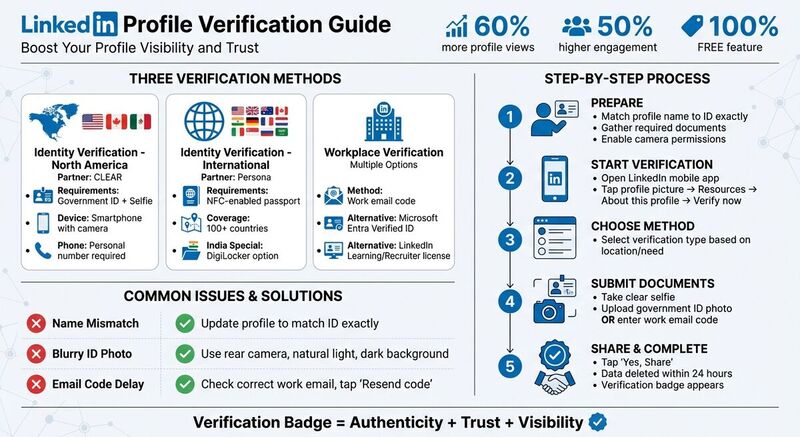
LinkedIn profile verification is a free feature designed to confirm your identity or workplace details, adding a badge next to your name. Verified profiles are more visible and receive 60% more views and 50% higher engagement. Here’s a quick overview of the process:
Identity Verification:
- U.S., Canada, Mexico: Use CLEAR with a government ID and selfie.
- International: Use Persona with an NFC-enabled passport.
- India: Verify through DigiLocker.
Workplace Verification:
- Confirm via work email, Microsoft Entra Verified ID, or LinkedIn Learning/Recruiter licenses.
Ensure your LinkedIn profile name matches your ID exactly to avoid delays. The process is done via the LinkedIn mobile app, and sensitive data is securely handled. Verifying your profile boosts trust and visibility, giving you an edge in professional networking.
How to Verify LinkedIn Account [2025 Update]
Types of LinkedIn Verification
LinkedIn offers three main verification methods, tailored to where you are and what kind of verification you need. Each method uses trusted partners to confirm your details and ensure everything checks out.
Workplace Verification
This method confirms your employment with a specific company. To verify, you'll need to enter a code sent to your work email. Keep in mind, this option is only available if your company uses an eligible email domain. If your organization uses Microsoft Entra Verified ID, employees can also verify through that system. Additionally, having an active LinkedIn Learning license or LinkedIn Recruiter license can serve as proof of workplace affiliation.
Identity Verification (North America)
If you're in the United States, Canada, or Mexico, LinkedIn partners with CLEAR for identity verification. Here's what you'll need: a government-issued ID (like a driver's license or passport) and a personal phone number registered in one of these countries. The process involves scanning your ID and taking a live selfie to match your biometrics. The best part? This version of CLEAR is completely free and doesn’t require a paid CLEAR Plus membership.
Identity Verification (International)
For those outside North America, LinkedIn uses Persona to handle identity verification in over 100 countries. If you're verifying internationally, you’ll need an NFC-enabled passport and a smartphone. If you're in India, there's an additional option to verify using DigiLocker.
All of these verification methods are quick and can be done through the LinkedIn mobile app. Rest assured, your sensitive information is securely processed and deleted shortly after the verification process is complete.
Up next, find out how to get your profile and documents ready for verification.
What You Need Before Starting Verification
Taking a little time to prepare your profile and documents can save you from future headaches. LinkedIn’s verification system is strict, and even small mismatches can lead to delays. Here’s how to get everything in order before you start.
Update Your LinkedIn Profile
Make sure the name on your LinkedIn profile matches your government-issued ID exactly. This is one of the most common reasons verification requests get rejected. For instance, if your ID says "Robert Smith", but your profile shows "Rob Smith" or "Robert J. Smith", your application won’t go through. Avoid using nicknames, extra initials, or titles that aren’t reflected on your ID.
"The name on your government-issued ID must match the name you display on your LinkedIn profile. Your verification will not be added to your LinkedIn profile unless they match." – LinkedIn Help [1]
If you update your name after completing verification, you’ll need to go through the process again to keep your verification badge visible.
Once your profile is updated, it’s time to gather the tools and documents you’ll need for verification.
Gather Required Documents and Equipment
The documents and tools you need will depend on how and where you’re verifying your identity. Here’s a quick overview:
- For identity verification in the U.S., Canada, or Mexico: Have a valid government-issued ID (like a passport, driver’s license, or state ID), a smartphone with a camera and NFC support (if required), and a personal phone number (business numbers won’t work with CLEAR).
- For international verification through Persona: You’ll need an NFC-enabled passport and a smartphone with NFC technology to scan the passport chip.
- For India-based verification: Get your DigiLocker credentials ready.
- For workplace verification: Make sure you have access to your company email or a LinkedIn Learning or Recruiter license provided by your employer.
Before you begin, double-check that your phone’s camera permissions are enabled for the LinkedIn app. If the app can’t access your camera, the process will fail before you even get started.
How to Complete LinkedIn Verification
Once your LinkedIn profile is updated and you've gathered the necessary documents, you're ready to start the verification process. The steps vary depending on your location and the method you choose.
Identity Verification with CLEAR (North America)
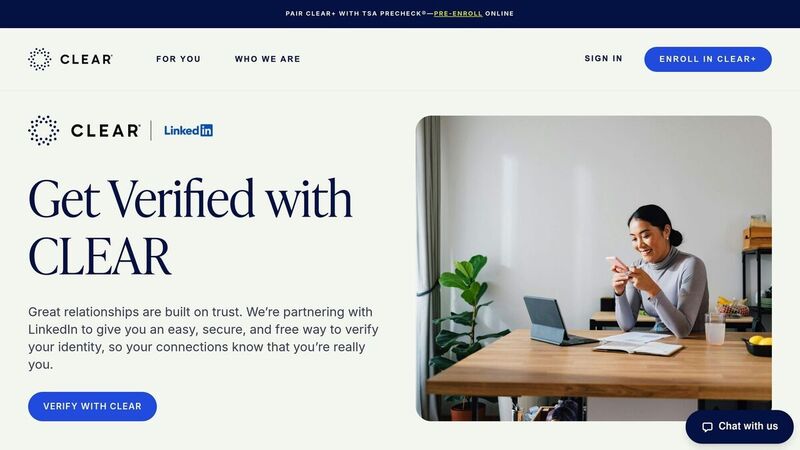
For users in the U.S., Canada, or Mexico, LinkedIn partners with CLEAR to verify identities. Start by opening the LinkedIn app, tapping your profile picture, and navigating to Resources > About this profile > Verify now. You'll need to provide a personal phone number or email (business numbers aren’t accepted) and either create or log into a CLEAR account.
Next, follow the instructions to take a live selfie and upload a clear photo of your government-issued ID, like a driver’s license, state ID, or passport. Make sure your face and the details on your ID are fully visible. Once you’ve completed this step, tap Yes, Share to send your verification data to LinkedIn. CLEAR deletes sensitive information, such as your address and phone number, within 24 hours after successful verification [1].
Identity Verification with Persona (International)
For users outside North America, the process involves scanning a QR code shown on the desktop version of LinkedIn using your smartphone. This will redirect you to the mobile app. Select the country where your government-issued ID was issued, agree to the terms, and grant camera access when prompted.
You’ll need to take a selfie and upload a photo of your government-issued ID. If required, use an NFC-enabled passport. Make sure the images are clear, with all text and details fully readable. Once done, tap Yes, Share to finalize the verification [4].
Workplace Verification Steps
Workplace verification is available for employees at select companies. To get started, choose your verification option, enter the work email address associated with your LinkedIn profile, and tap Send code. You can also schedule posts and cross-post to LinkedIn and other platforms to maintain an active presence. Check your email for the verification code, then enter it on LinkedIn and tap Submit.
If your company uses Microsoft Entra Verified ID or if you have access to a company-provided LinkedIn Learning or Recruiter license, you can use those credentials for verification as well. Just ensure your job title and company information on your profile are accurate, as any discrepancies could cause delays [5].
Completing these steps helps boost trust and credibility for your LinkedIn profile, making it more visible to others.
Fixing Common Verification Problems
Even with the best preparation, you might run into issues during the verification process. Most challenges fall into a few predictable categories, and the good news is they’re usually easy to sort out.
Fix Name and Profile Mismatches
Your LinkedIn profile name must match exactly with the name on your government-issued ID. Even a small difference can block your verification. Before starting, double-check your profile settings and update your name so it matches your ID character-for-character.
"The name on your government-issued ID must match the name you display on your LinkedIn profile. Your verification will not be added to your LinkedIn profile unless they match." - LinkedIn Help [1]
If you decide to change your name after being verified, you might need to go through the process again to keep your badge visible [5].
Also, make sure the images of your documents are clear to avoid scanning issues.
Fix ID Scan Problems
Blurry or unclear ID photos are a common reason for rejection. For the best results, use your smartphone’s rear camera in a well-lit spot, ideally near a window with natural light. Avoid using the flash - it can cause glare that makes the details on your ID hard to read [8].
Place your ID on a plain, dark surface to help the camera focus properly. Make sure the lens is clean, and always take a photo of the physical ID - not a picture on a screen or a printed copy [8]. Before submitting, check that the text and details are sharp and easy to read. If there’s even a hint of blurriness, take another shot.
Once your ID is sorted, ensure you’re receiving the email verification code smoothly.
Fix Email Verification Delays
For workplace verification, LinkedIn sends a code to your work email address, which must match the company listed on your profile [4][9]. If the code doesn’t arrive within a few minutes, select Resend code on the verification screen to request another one [4][9].
Double-check that you’re using the correct email account - the one associated with your current employer as listed on your profile. If your job title or company information is outdated, update it before requesting a new code [4][9].
Why Verify Your LinkedIn Profile
Having a verified LinkedIn profile isn't just about ticking a box - it’s about boosting your professional credibility and standing out in an increasingly crowded digital space.
Build Professional Trust
When a verification badge appears next to your name, it’s like a stamp of authenticity. In a world where AI-generated profiles and fake accounts are becoming more common, this badge signals to others that you’re the real deal.
"A verification badge is an icon that appears next to your name on your LinkedIn profile page... helping you signal authenticity and build trust, giving others more confidence to connect with you." - LinkedIn Help Center [5]
This badge verifies key details like your current job or educational background, offering recruiters and hiring managers extra assurance about the information on your profile [5][3]. It also provides additional transparency - viewers can see when your account was created and whether your phone number or work email has been verified. These small but crucial details can make a big difference when someone is deciding whether to connect or reach out [6].
And that’s not all - this trusted status can directly enhance your profile’s visibility.
Increase Profile Visibility and Recruiter Interest
Verified profiles don’t just look more trustworthy; they also perform better. They attract more views, engagement, and messages compared to unverified profiles [5][7]. Why? Because LinkedIn’s algorithm tends to favor profiles that demonstrate authenticity, giving verified users a natural boost over time.
Recruiters and hiring managers are particularly drawn to verified profiles. The badge eliminates any lingering doubts about your identity, making them more likely to trust you and engage.
"People are more likely to accept your connection requests and respond to your messages when you have a verification." - CLEAR [7]
Here’s the best part: LinkedIn verification is completely free for all users [5][7][3]. Unlike some platforms where verification comes at a cost, LinkedIn ensures that anyone willing to complete the process has access to this feature. It’s not about how much you can pay - it’s about proving your authenticity.
Conclusion
Following the steps outlined earlier, verifying your LinkedIn profile is a quick and effective way to boost your credibility and stand out in a crowded professional landscape. It’s free, takes just a few minutes, and can make a lasting impact.
"Verified information on your profile helps you signal authenticity and build trust through a verification badge, giving others more confidence to connect and interact with you." - LinkedIn Help Center [2]
Whether you opt for identity verification through CLEAR or Persona, or verify your workplace using your company email, each badge adds weight to your professional image. In a time when fake profiles and AI-generated accounts are on the rise, that gray checkmark next to your name becomes a symbol of trust for recruiters, hiring managers, and potential collaborators.
With your profile updated, post to multiple platforms to maintain consistency, and with the necessary documents ready, completing the verification process is straightforward. Those few minutes of effort can lead to better networking opportunities, increased interest from recruiters, and stronger professional connections.
Take the step today - verify your profile and make your professional presence stand out.
FAQs
How does LinkedIn protect my personal information during the verification process?
LinkedIn ensures your personal information is handled securely throughout the verification process. To verify your identity, you'll need to provide two things: a government-issued photo ID and a valid personal phone number (business numbers won't work). This information is shared with LinkedIn's trusted partner, CLEAR. They handle the ID verification and, if you don’t already have one, create a free CLEAR account for you. Once your identity is confirmed, CLEAR notifies LinkedIn, and your verification badge is added to your profile.
This verification step is optional and currently available only in the United States, Canada, and Mexico. The name on your government ID must match the name on your LinkedIn profile, though exceptions may be considered. The entire process happens through the LinkedIn mobile app - desktop browsers aren’t supported. Once approved, the badge will show up next to your name, making your profile instantly recognizable as verified.
What can I do if my LinkedIn verification request is denied?
If LinkedIn denies your verification request, the first step is to figure out what went wrong. Some common reasons include mismatches between the name on your government-issued ID and your LinkedIn profile, using a business phone number instead of a personal one, or trying to verify from a country where LinkedIn’s partner service isn’t available.
To fix these issues, make sure the name on your ID perfectly matches the name on your profile. Use a personal mobile number, and double-check that your ID photo is clear and easy to read. Once you’ve addressed these problems, you can resubmit your request. If it’s still not approved, you might need to fine-tune things further and try again.
If you’re still running into trouble, reach out to LinkedIn Support. They can help pinpoint the issue and provide guidance to help you complete the verification process.
Why is having a LinkedIn verification badge important for professional networking?
A LinkedIn verification badge boosts your credibility as a professional, making it simpler for others to trust and engage with you. With this badge, you could see around 60% more profile views and 50% more engagement, giving you a stronger presence on the platform. By confirming your identity and workplace, you position yourself as a reliable and trustworthy connection, helping you stand out in your industry.