Bluesky Image Sizes and Formats Guide
Last updated: December 27, 2025
For Bluesky, using the right image dimensions and formats ensures your visuals look sharp and professional on both desktop and mobile. Here’s what you need to know:
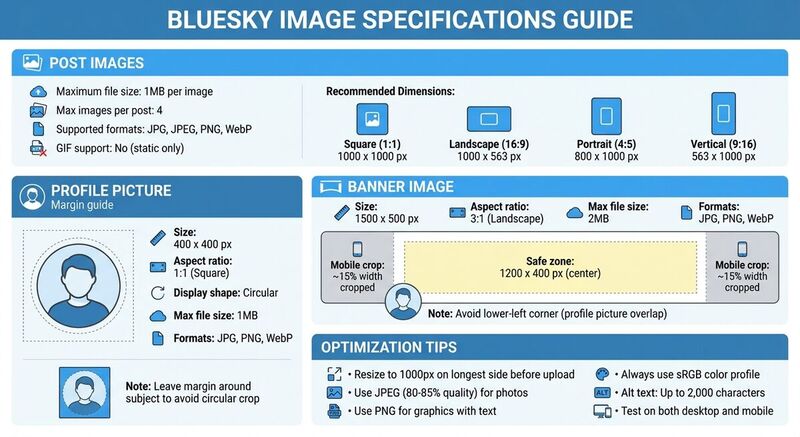
Post Images: Stick to these sizes for best results:
- Square (1:1): 1000 x 1000 px
- Landscape (16:9): 1000 x 563 px
- Portrait (4:5): 800 x 1000 px
- Vertical (9:16): 563 x 1000 px
- File size: Under 1MB
- Formats: JPG, PNG, WebP (GIFs not supported)
Profile Picture: 400 x 400 px, 1:1 aspect ratio, under 1MB.
Banner Image: 1500 x 500 px (3:1), under 2MB. Keep key elements in a 1200 x 400 px safe zone to avoid cropping.
Key Tips:
- Resize images to 1000px on the longest side.
- Use JPEG for photos, PNG for graphics with text, and sRGB color profile for consistent colors.
- Add descriptive alt text for accessibility (up to 2,000 characters).
- Test images on both desktop and mobile to prevent cropping issues.
Bluesky Post Image Specifications
Image Dimensions and Aspect Ratios
When uploading images to Bluesky, keep in mind that the platform limits the longest side of an image to 1000 pixels [2]. If your image exceeds this size, it will be scaled down, potentially affecting its quality [2].
For the best results, stick to these recommended aspect ratios: 1:1 (square), 16:9 (landscape), 4:5 (portrait), and 9:16 (vertical) [2]. Here’s a quick guide to the ideal dimensions for each:
- Square (1:1): 1000 x 1000 pixels
- Landscape (16:9): 1000 x 563 pixels
- Portrait (4:5): 800 x 1000 pixels
- Vertical (9:16): 563 x 1000 pixels
These dimensions ensure your images look polished and avoid awkward cropping on both desktop and mobile screens.
File Formats and Size Limits
Bluesky supports JPG, JPEG, PNG, and WebP formats for still images [2]. Each file must be under 1MB [2]. For optimal results, use JPEG for photos and PNG for graphics with text.
One important note: animated GIFs are not supported. If you want to share motion content, you’ll need to upload a video file (MP4 or MOV, up to 3 minutes and 300MB) or choose from the integrated Tenor GIF library [2][3].
Table: Bluesky Post Image Specifications
| Specification | Requirement |
|---|---|
| Square Post (1:1) | 1000 x 1000 px |
| Landscape Post (16:9) | 1000 x 563 px |
| Portrait Post (4:5) | 800 x 1000 px |
| Vertical Post (9:16) | 563 x 1000 px |
| Max File Size | 1MB per image |
| Max Images per Post | 4 images |
| Supported Formats | JPG, JPEG, PNG, WebP |
| GIF Support | No (use video or Tenor) |
How to Set Bluesky Profile Banner and Picture Sizes [Step-by-Step]
Profile Picture and Banner Image Guidelines
Your profile picture and banner are the first things people notice about your profile. To make a strong impression, these visuals need to be sharp and professional, which means using the right dimensions to ensure they look great on all devices.
Profile Picture Requirements
Bluesky suggests uploading profile pictures at 400 x 400 pixels in a 1:1 square format [1]. Since profile pictures are displayed in a circular frame, it’s a good idea to leave some margin around logos or faces to prevent them from being cropped. Keep the file size under 1MB and stick to JPG, PNG, or WebP formats for the best results.
Banner Image Requirements
For banner images, aim for a size of 1500 x 500 pixels with a 3:1 aspect ratio [1]. To avoid compression issues, keep the file size below 2MB. Be mindful of text placement - keep it 100–150 px away from the edges to ensure visibility. Since mobile devices crop about 15% of the banner's width [4], it’s smart to position key elements like text, logos, and images within a 1200 x 400 px central safe zone. Also, avoid putting important details in the lower-left corner, as your profile picture will overlap this area. Using the sRGB color profile can help maintain consistent colors across screens and browsers.
| Specification | Profile Picture | Banner Image |
|---|---|---|
| Recommended Size | 400 x 400 px | 1500 x 500 px |
| Aspect Ratio | 1:1 (Square) | 3:1 (Landscape) |
| Max File Size | 1MB | 2MB |
| Supported Formats | JPG, PNG, WebP | JPG, PNG, WebP |
| Display Shape | Circular | Rectangular (variable crop) |
[1] Bluesky Guidelines
[4] Mobile Usage Statistics
Image Optimization Tips for Bluesky
Optimizing your images isn’t just about making them load faster - it’s about keeping them visually appealing while ensuring your Bluesky profile stands out. With more than 70% of Bluesky’s traffic coming from mobile devices [4], it’s crucial to balance speed and quality to keep your audience engaged.
How to Prepare Your Images
Start by resizing your images to 1000 pixels on the longest side before uploading [2]. For exporting, use JPEG or WebP formats at 80–85% quality for photos, while PNG works best for graphics. Make sure file sizes stay under 1 MB and use the sRGB color profile [2][3]. For images with text, logos, or sharp edges, stick to PNG with lossless compression to retain detail [3].
Before uploading, zoom in to 200% to spot any compression artifacts or pixelation that might become more noticeable after Bluesky’s processing [4]. Once your files are optimized, don’t forget to include descriptive alt text to improve accessibility.
Adding Alt Text for Accessibility
Alt text isn’t just a nice-to-have; it’s essential for making your content accessible to users with visual impairments. Bluesky allows up to 2,000 characters for alt text [8]. Manning Krull offers a great tip:
Write alt text like you're describing the image to someone over the phone [7].
Focus on the key details first, and if there’s text in the image, transcribe it word-for-word [5].
To save time, try using tools like TheBlue.social's free alt text generator to create descriptions automatically. For even better accessibility, turn on the "Require alt text before posting" option in Settings > Accessibility [6].
Testing Images Across Devices
Always preview your images on both desktop and mobile before posting. Mobile devices often crop around 15% of a banner’s width [4], so double-check your profile on your phone to ensure important elements like text and logos stay visible. Use the Bluesky post window preview to catch any awkward cropping or framing issues.
Using Multiple Images in a Single Post
When it comes to posting multiple images, a thoughtful approach to layout and file consistency is key. On Bluesky, you can upload up to 4 images per post, which are automatically arranged in a grid. The layout adapts based on the number of images you include: two images are displayed side-by-side, three images show one larger image with two smaller ones stacked next to it, and four images are arranged in a neat 2x2 square grid. A small 4-pixel gap separates each image, keeping the design clean and organized.
Tips for a Balanced Grid Layout
To ensure your multi-image posts look polished, use images with consistent dimensions - 1080 x 1080 pixels works perfectly. Place your most eye-catching image first to grab attention right away. Before hitting "post", take advantage of the preview feature to see how your grid will appear on both desktop and mobile screens. These small steps can make a big difference in creating a cohesive and visually appealing post.
File Guidelines for Multi-Image Posts
Each image should be less than 1MB and saved in JPG, PNG, or WebP formats. Keep in mind that animated GIFs are not supported - they’ll only display as static images. For accessibility, make sure to include unique alt text for each image. This not only enhances usability but also ensures your content is inclusive for all viewers.
Conclusion
To nail your visuals on Bluesky, stick to these key guidelines: 400 x 400 px for profile pictures, 1500 x 500 px for banners, and keep post images under 1MB in JPG, PNG, or WebP format. Use the recommended aspect ratios - 1:1 for square posts, 16:9 for landscape, and 4:5 for portrait - to ensure your images look great on both desktop and mobile.
For consistent, vibrant colors, always export your images in sRGB. When working on profile pictures, center the subject carefully to fit the circular crop. For banners, keep crucial elements like text and logos within the central 1200 x 400 px safe zone to avoid awkward cropping on smaller screens.
Don't overlook accessibility. Add alt text to every image to make your content more inclusive. Bluesky even offers an alt text reminder under Settings > Accessibility, helping you remember to include descriptions before posting.
To make the process even easier, check out TheBlue.social's profile picture editor for resizing and optimizing your images. They also provide an alt text generator to quickly create clear, accessible descriptions. With these free tools and tips, you'll be ready to create content that not only looks sharp but also connects with Bluesky's growing community of 36 million users.
FAQs
Why doesn’t Bluesky allow animated GIFs?
Bluesky has chosen not to support animated GIFs due to their limited color range and larger file sizes. These factors can lead to slower load times and affect the platform's overall performance. Instead, Bluesky focuses on static images and videos, which offer higher quality and ensure a smoother experience for users.
How can I make sure my Bluesky banner looks great on mobile?
To make sure your Bluesky banner looks perfect on mobile, stick to the recommended dimensions: 1500 × 500 pixels with a 3:1 aspect ratio. This ensures your design won’t get cropped and will display nicely on both desktop and mobile devices.
When designing, keep crucial elements like text or logos within a central "safe zone." Leave at least 100 pixels of padding on the left and right edges, and 50 pixels of padding on the top and bottom. This helps prevent important details from being cut off on smaller screens. Save your banner as a PNG for crisp graphics or a JPEG for photos, and aim for a file size under 2 MB to maintain quality without slowing down loading times.
Before uploading, preview your banner on both desktop and mobile to make sure everything is properly aligned. If needed, tweak the placement of key elements to ensure they’re perfectly centered and visible.
What is the best image format for text-based visuals on Bluesky?
When it comes to images with text, PNG is your go-to format for Bluesky. It keeps text sharp and clear while preserving high quality without introducing compression artifacts. This makes it ideal for graphics such as infographics, charts, or any designs with a lot of text.