How to Add Alt Text to LinkedIn Images
Last updated: June 15, 2026
Alt text on LinkedIn helps people using screen readers understand what is in an image. LinkedIn says you can add alternative text to feed images and images embedded in articles, and it may auto-generate alt text when you do not add your own [1].
- On Desktop: Upload an image, click Alt.text, write a description, and save it.
- On Mobile: Upload an image, tap ALT, write the description, and tap Done [1].
- Multiple Images: Add unique alt text for each image in a post.
- Best Practices: Be concise, focus on key details, and avoid generic phrases like "image of."
Alt text is for accessibility first. Use TheBlue.social's Alt Text Generator for a quick draft, use OCR when the image contains text, then edit the final description before publishing.
How to add "alt text" on LinkedIn
How to add alt text to LinkedIn images
To make your LinkedIn posts more accessible, add alt text before publishing the image. LinkedIn supports this on desktop and mobile [1].
Adding Alt Text on Desktop
Using LinkedIn's desktop site, start by clicking the Photo button to upload an image for your post. Once your image is uploaded, look for the ALT button below the image and click it.
This will open a text box labeled "Alt text*". Here, you can write a description of the image, keeping within LinkedIn's 120-character limit. Once you've entered the description, click Add to save it.
After you've added alt text to all the images in your post, click Next to proceed. This gives screen reader users a description of the visual content.
Adding Alt Text on Mobile App
LinkedIn's mobile flow is similar. After uploading an image, tap ALT, write the description, and tap Done [1]. I would still preview the post before publishing, especially when the image has small text or charts.
Adding Alt Text to Multiple Images
When you're uploading multiple images in a single post, it's important to add a unique alt text description for each image. To do this, click the ALT button for each image individually, write a specific description, and click Add.
For example, if you're sharing photos from a conference, you might describe them as: "Keynote speaker presenting on stage", "Attendees networking in the lobby", and "Panel discussion featuring industry experts." These detailed descriptions help screen reader users understand the full context of your visuals.
LinkedIn may automatically generate alt text for images without a custom description [1]. Review it. Auto-generated text is only a fallback. Write a description that matches your post.
How to write good alt text
Alt text plays a crucial role in making your LinkedIn posts accessible. To make it effective, focus on writing descriptions that are clear, concise, and relevant to your post. Keep LinkedIn's character limits in mind while crafting your alt text.
Alt Text Writing Rules
The key to writing good alt text is being descriptive but concise. Highlight the most important elements of the image without overloading it with unnecessary details. Avoid phrases like "image of" or "picture of" because screen readers already inform users that they're encountering an image.
Ask yourself: What would someone need to know about this image if they couldn't see it? Focus on the main actions, people, or data. For example, if you're posting a photo from a networking event, describe the key activity instead of listing every detail, like clothing or room décor.
Stick to neutral and factual language instead of subjective descriptions. For instance, instead of saying "a beautiful sunset", describe it as "orange and pink sunset over the ocean." This allows users to form their own impressions while still getting the essential information.
Always consider the context of your post when writing alt text. If your post is about quarterly results, describe the key trends in the chart rather than just labeling it "bar chart." The alt text should complement and enhance your message.
Alt Text Examples
It's easier to understand the difference between weak and strong alt text with examples. Here's how to improve vague descriptions:
Weak alt text: "People working"
Improved alt text: "Three colleagues reviewing documents at a conference table"Weak alt text: "A graph"
Improved alt text: "Bar chart showing quarterly sales growth from Q1 to Q4"Weak alt text: "Team photo"
Improved alt text: "Five marketing team members standing in office lobby"
For images containing text, such as event banners or announcements, repeat the text exactly in your alt description. If the banner says "Join Our Webinar: December 15", your alt text should say the same.
For complex visuals like infographics, focus on the main takeaway. For example: "Infographic showing remote work increased productivity by 25% in 2024." Avoid trying to describe every single detail.
LinkedIn Alt Text Character Limits
LinkedIn limits alt text to 120 characters, so you'll need to prioritize the key information. Start with the most important subject or action, then add context if space allows. For example, instead of writing, "A group of five business professionals having a productive meeting in a modern conference room", simplify it to "Five professionals discussing project plans at conference table."
Save space by cutting unnecessary words like "a", "an", or "the." For instance, "Team meeting at conference table" works just as well as "A team meeting at a conference table."
If your image contains multiple elements, focus on the details most relevant to your post. For example, if your post is about leadership, highlight the leadership-related aspects rather than unrelated background features.
Need help drafting concise alt text? TheBlue.social's Alt Text Generator can give you a starting point. Edit the result so it matches the LinkedIn post and the image context.
Alt text tools and resources
Writing alt text for every LinkedIn image takes time. Tools help with the first draft, but the final description still needs human review.
TheBlue.social Alt Text Generator
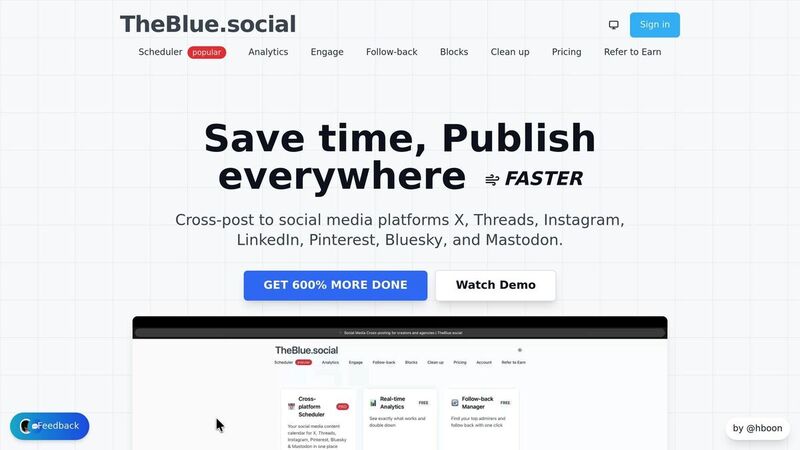
TheBlue.social's Alt Text Generator is a free tool for drafting image descriptions. Upload an image or paste an image URL, get a draft, then edit it before adding it to LinkedIn.
Use it as a draft generator, not as an accessibility audit. For higher-volume work, TheBlue.social also has a bulk alt text page for paid use.
The useful companion tool is OCR. If a LinkedIn image contains text, extract it first, then decide what belongs in the alt text. TheBlue.social also has LinkedIn scheduling, so you can prepare the post and supporting copy in the same workflow.
Additional Accessibility Resources
If you want to go beyond automated tools, there are plenty of resources to help you refine your accessibility skills. For example, LinkedIn's Help Center offers technical guidance on adding alt text, including tips for adhering to their 120-character limit.
The Web Content Accessibility Guidelines (WCAG) are widely recognized as the standard for digital accessibility. These guidelines offer detailed advice on creating alt text, such as when to leave alt attributes empty for decorative images or how to describe complex visuals like charts and infographics. Following WCAG guidance helps you make better accessibility decisions. Legal compliance depends on context, so do not treat an alt text generator as legal review.
Organizations such as the National Federation of the Blind and WebAIM provide valuable insights into how screen reader users interact with social media. Understanding their perspective can help you write alt text that enhances the user experience.
Lastly, it's worth bookmarking resources that keep you updated on accessibility best practices. Accessibility consultants and organizations often share updates on platform-specific requirements and evolving standards, which helps you keep social posts accessible as platform features change.
Fixing common alt text problems
Even with the best intentions, adding alt text to LinkedIn images can sometimes go awry. By identifying these common mistakes and knowing how to address them, you can consistently create content that's more accessible.
Common Alt Text Issues
Technical glitches can be frustrating. If you notice the ALT button is missing or your alt text isn't saving, try refreshing the page, switching browsers, clearing your cache, or signing out and back in.
Vague descriptions are another common problem. Instead of generic phrases like "image of a person", aim for more specific details. For example, describe the image as "Four colleagues discussing project plans in a conference room." This level of detail provides screen reader users with a clearer understanding of the image's content.
Character limits can also trip you up. LinkedIn has a 120-character limit for alt text, so it's important to keep descriptions concise. For instance, instead of writing, "A group of people sitting around a large wooden table in a bright conference room with white walls and a whiteboard", you could simplify it to "Team meeting in conference room with whiteboard."
Lack of context can make alt text less useful. Your description should align with the purpose of the post. For example, if you're sharing a quarterly sales graph, write something like "Sales growth chart showing 25% increase from Q1 to Q2." This ties the image directly to the message of your post.
Repetitive information is another issue to avoid. If your post caption already describes the image, don't repeat it in the alt text. Instead, focus on aspects of the image that aren't covered in the caption, such as "Five team members holding champagne glasses in office lobby."
Double-check your alt text before publishing. Platform editing behavior changes over time, and it is easier to fix the description before the post goes out.
Other LinkedIn Accessibility Features
Alt text is just one piece of the puzzle. LinkedIn offers several other features to improve accessibility, and when used together, they can create a more inclusive experience.
Auto-captions for videos are a great tool. You can enable them by tapping the "CC" icon in the mobile app. Make sure to review and edit the captions for accuracy. For important videos, consider uploading an SRT file with manually created captions.
Color contrast is another key factor. When designing graphics, use enough contrast between text and background colors. Don't rely on color alone to convey important information - add text labels or patterns to make it clear.
Readable text formatting helps users with cognitive or visual disabilities. Use simple fonts in your graphics and break up long paragraphs into smaller sections. For hashtags, use PascalCase (e.g., #SocialMediaTips) so screen readers can pronounce each word correctly.
Descriptive links are more user-friendly than generic phrases like "click here." Instead, write something like "Read our guide to LinkedIn marketing strategies."
Flashing content should be avoided entirely, as it can trigger seizures in people with photosensitive epilepsy. If you're using animations, ensure they don't flash more than three times per second.
For videos, provide captions or transcripts and include a brief summary in your post caption. Even if auto-captions are enabled, a written overview makes the key points easier to understand.
Finally, test your content for accessibility. This doesn't require special tools - ask a colleague to review your post or use your device's built-in screen reader to hear how your alt text sounds when read aloud. These small steps can make a big difference in creating inclusive content.
Conclusion
Adding alt text to your LinkedIn images is a small step that makes your content usable for more people, including users who depend on screen readers.
Here's a quick recap of how it works: You can add alt text through LinkedIn's desktop site by clicking the ALT button and typing a concise description - ideally under 120 characters. You can also add it from mobile. Double-check your description before publishing, because platform editing behavior changes and it is easier to fix before the post goes out. Focus on capturing the key details of the image and making sure it complements the context of your post.
Beyond alt text, LinkedIn offers other accessibility features that can help make your content more inclusive for all users.
If creating alt text feels slow, try TheBlue.social's Alt Text Generator. Treat the output as a draft, then edit it for the image and the LinkedIn post.
FAQs
Why should I add alt text to images on LinkedIn, and how does it help users with disabilities?
Adding alt text to your LinkedIn images is a simple yet impactful step toward making your content accessible to everyone, including individuals with visual impairments. Alt text serves as a written description of an image, allowing screen readers to communicate the image's content to those who can't see it.
Including alt text makes the post more useful for people who cannot see the image. It also forces you to describe the point of the visual, which usually improves the post.
What should I avoid when writing alt text for LinkedIn images?
When creating alt text for LinkedIn images, aim for clarity and relevance without being too vague or overly detailed. For example, instead of writing something generic like "image of a person", provide context such as "a business professional delivering a presentation." Skip phrases like "image of" or "picture of", as screen readers already announce that it's an image. Avoid adding unnecessary details or technical jargon that might confuse users. Keep the description focused on the key elements, and keep it brief enough to understand quickly.
How do I add alt text to images on LinkedIn to make them more accessible?
To include alt text for images on LinkedIn, here's what you need to do:
- Start by clicking the image icon when creating a post to upload your image.
- After the image uploads, look for the 'Add alt text' option beneath it and select it.
- Write a short, descriptive text that explains the image. Highlight key details that provide context or meaning.
- Save your changes and continue posting as you normally would.
Adding alt text makes your content more accessible for visually impaired users by giving screen readers a description to read. Keep your description clear, relevant, and short enough for the platform field.