How to Auto-Generate Captions for Accessibility
Last updated: February 7, 2026
Did you know that 50% of viewers watch videos with the sound off? Without captions, half your audience might miss your message entirely. Captions not only make videos accessible for people with hearing impairments but also benefit commuters, non-native speakers, and anyone in sound-restricted environments. Plus, they improve SEO and meet legal requirements like ADA compliance.
Here’s what you’ll learn:
- Why captions are critical for accessibility and engagement.
- How AI tools can generate captions in minutes with up to 99% accuracy.
- Steps to choose the right tool, edit captions, and publish them across platforms.
- Tips for creating multilingual captions to expand your reach.
Whether you’re a content creator, educator, or business professional, this guide shows you how to make your videos accessible and searchable with minimal effort.
Top 5 Ai Video Caption Tools
Why Captions Are Important for Accessibility
Captions play a crucial role in making content accessible to everyone. Just as you would generate alt text for images to describe visuals, captions provide a text-based alternative for audio. Over 460 million people globally - more than 5% of the population - experience significant hearing loss [13]. In the U.S. alone, 15.5% of adults live with hearing impairments [12]. Without captions, millions of individuals are excluded from accessing video content.
But the need for captions isn't limited to the deaf or hard-of-hearing community. Think about commuters watching videos in silent mode on a noisy train or parents trying to catch up on shows after their kids have gone to bed [11][13]. Captions make these scenarios possible. In fact, 80% of viewers are more likely to watch an entire video when captions are available, and 83% of U.S. media consumers regularly watch videos with the sound off [13].
Captions also have a huge impact on education. Research spanning over 100 studies shows that captions improve comprehension, attention, and memory for viewers of all ages [11]. For non-native English speakers, captions are a powerful tool for learning technical terms and expanding vocabulary. As English teacher Heidi Rae shares:
"The students love the videos, and the subtitles really help them to learn new vocabulary as well as better understand and follow the video." - Heidi Rae, Education [1]
At the University of South Florida, 99% of students agreed that captions helped them learn about a topic [13]. Clearly, captions don’t just improve accessibility - they also enhance learning, engagement, and even legal compliance.
Main Benefits of Adding Captions
Adding captions delivers benefits in three key areas that directly influence your content's success:
Accessibility: Captions ensure that individuals with hearing impairments can fully engage with your content. They’re also invaluable in environments where audio isn’t practical, like noisy coffee shops or quiet libraries [6][4].
Engagement and Retention: Captions keep viewers engaged by making complex instructions or technical terms easier to follow. They turn passive watching into active learning, which leads to higher retention rates [1].
SEO and Discoverability: Search engines can’t process audio, but they can index the text from captions and transcripts. This makes your video content searchable, driving more organic traffic. For example, Microsoft 365 indexes caption files just like Word documents, making them discoverable through enterprise search tools [13][6].
Beyond these benefits, captions are essential for meeting legal and regulatory standards.
Legal Requirements and Compliance
In the U.S., captioning is a legal requirement for many organizations. The Americans with Disabilities Act (ADA) mandates captions in most educational, workplace, and broadcast settings [11]. The Twenty-First Century Communications and Video Accessibility Act extends these rules to online video content, ensuring digital platforms meet the same accessibility standards as traditional broadcasts.
To comply with the Web Content Accessibility Guidelines (WCAG) 2.1 Level AA, captions must meet specific quality standards. These include accurate synchronization with audio, clear speaker identification, and the ability to toggle captions on or off. Professional captions typically achieve over 99.5% accuracy, while automated captions require human review to meet these standards [12].
"AI is transforming closed captioning by making it faster and more scalable, but it doesn't replace human expertise." - accessiBe [12]
Failing to meet these requirements can lead to lawsuits, fines, and damage to your brand’s reputation. On the other hand, prioritizing accessibility often leads to stronger customer loyalty and a broader audience reach. For businesses operating internationally, compliance with the European Accessibility Act makes captions even more essential [1].
How to Choose a Captioning Tool
 Picking the right auto-captioning tool depends on your specific needs, budget, and the platforms where you'll publish your content. A good tool not only improves the viewer's experience but also ensures you stay compliant with legal requirements. That said, not all tools are created equal - accuracy, language options, and accessibility features can vary widely.
Features to Consider
Accuracy should be your top priority. While many tools boast claims of 99% accuracy [1][3], actual performance can depend heavily on factors like audio quality, accents, and technical jargon. YouTube's Help Center offers a clear warning:
"Automatic captions might misrepresent the spoken content due to mispronunciations, accents, dialects, or background noise. You should always review automatic captions and edit any parts that haven't been properly transcribed." [7]
Look for tools that include a built-in editor. This feature allows you to correct errors, adjust timing, and include non-speech cues (like [laughter] or [music]) to ensure your captions are fully compliant with closed captioning (CC) standards.
Export options are another key consideration. Your tool should support widely-used formats like SRT and VTT, which are compatible with platforms such as YouTube and Facebook. If you're creating content for Instagram Reels or TikTok, you'll need the ability to export hardcoded captions - these are captions burned directly into the MP4 file, as these platforms don’t support separate caption files [1].
For creators targeting international audiences, language support matters. YouTube offers captions in over 60 languages [7], while ElevenLabs supports an impressive 99 [3]. However, be mindful of whether the languages are marked as "Stable" or "Beta." Beta languages often require more manual corrections [5].
Lastly, customization options like font style, size, color, and background contrast are crucial for maintaining readability and meeting accessibility guidelines [10].
Comparison of Popular Captioning Tools
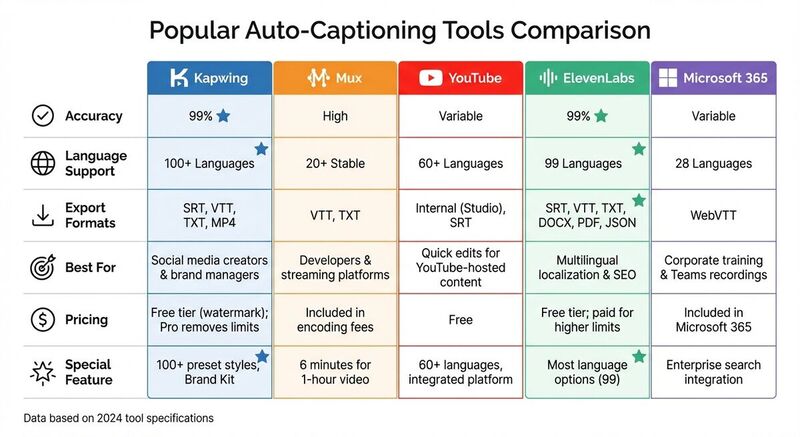
Here’s a breakdown of some widely-used tools and their features:
| Tool | Accuracy | Language Support | Export Formats | Best For | Pricing |
|---|---|---|---|---|---|
| Kapwing | 99% [1] | 100+ Languages | SRT, VTT, TXT, MP4 | Social media creators and brand managers | Free tier with watermark; Pro removes limits [1] |
| Mux | High | 20+ Stable | VTT, TXT | Developers and streaming platforms | Included in encoding fees [2] |
| YouTube | Variable | 60+ Languages | Internal (Studio), SRT | Quick edits for YouTube-hosted content | Free [7] |
| ElevenLabs | 99% [3] | 99 Languages | SRT, VTT, TXT, DOCX, PDF, JSON | Multilingual localization and SEO | Free tier; paid for higher limits [3] |
| Microsoft 365 | Variable | 28 Languages | WebVTT | Corporate training and Teams recordings | Included in Microsoft 365 [6] |
Mux stands out for its speed, as it can generate captions in about 6 minutes for a 1-hour video [2]. YouTube, while free and widely accessible, may not always deliver the same level of accuracy as specialized tools [10].
To make the best choice, test potential tools with a sample video that mirrors your typical content. Pay attention to how well the tool handles your audio quality, background noise, and speech patterns. This hands-on trial will give you a better sense of whether the tool aligns with your needs than any advertised feature list [5]. Opting for tools with flexible export formats and customization options can also save you time during the editing and publishing stages.
Step-by-Step Guide to Auto-Generating Captions
Once you’ve chosen your tool, the process is straightforward: upload your video, let the AI handle the transcription, review the results, and export the captions. Short videos are processed in just minutes. Let’s break down how to get the most out of each tool.
Generating Captions with VEED
Start by uploading your video file (supported formats include MP4, MOV, and AVI). You can either drag and drop the file or use the file selection option. Once uploaded, head to the subtitles section on the left toolbar and click the "Auto Subtitle" button to kick off the AI transcription.
VEED will automatically process your audio and generate captions. For videos under 30 seconds, this usually takes just a few seconds. After the captions are created, you can review and make edits directly in the transcript view. Adjust the text and timing to ensure everything aligns perfectly with the audio.
When the captions are accurate, you can customize their appearance. VEED allows you to tweak font style, size, color, and background contrast to match your preferences. Once everything looks good, export your video. You can either hardcode the captions into the MP4 file or download them as separate SRT or TEXT files for platforms that support sidecar captions [15].
Generating Captions with Kapwing
After uploading your video to Kapwing, navigate to the "Subtitles" section in the left-hand toolbar and click "Auto subtitles." The AI will generate captions, which Kapwing claims to achieve up to 99% accuracy [1][14].
Kapwing’s transcript editor makes it easy to refine your captions. You can adjust the text and modify the timing using the start and end time columns. If your video includes multiple speakers, Kapwing’s speaker detection feature automatically identifies and separates them, letting you apply unique styles to each speaker [1][14].
Customization is another strength of Kapwing. With over 100 preset styles to choose from - or the option to create your own using custom fonts, colors, and backgrounds - you can ensure your captions fit your brand. For team projects, save your preferred settings in a "Brand Kit" to maintain a consistent style across all videos [1][14]. When you’re ready, export the video with hardcoded subtitles or download separate SRT, VTT, or TXT files using the options in the subtitle editor [1][16].
Generating Captions with Happy Scribe
Happy Scribe takes a slightly different route, prioritizing professional-grade accuracy and security. Start by uploading your video file (formats like MP4, MOV, and MKV are supported). During the upload process, you’ll select the primary language of your video, making this tool a great fit for multilingual content.
Once the AI generates the captions, review and fine-tune them for accuracy. Focus on proper nouns, technical terms, and non-speech elements like [music] or [applause], which are essential for full accessibility. Happy Scribe’s interface allows you to adjust timing frame-by-frame, ensuring every caption is perfectly synced with the audio.
The platform also offers extensive export options. In addition to standard SRT and VTT formats, Happy Scribe provides specialized formats compatible with professional editing tools like Final Cut Pro, AVID, and Premiere [15]. This makes it an excellent choice for high-quality productions or projects requiring advanced post-production workflows.
Editing and Customizing Your Captions
Auto-generated captions are a good starting point, but they’re far from perfect. After generating captions, it’s crucial to review and refine them. AI often struggles with accents, industry-specific terms, proper nouns, and background noise, which can lead to mistakes. These errors can reduce accessibility, so careful editing is key to ensuring your captions are accurate and compliant. This step bridges the gap between auto-generation and the final stages of exporting and publishing.
Fixing Errors and Adjusting Timing
Think of auto-generated captions as a rough draft. Use tools with a side-by-side editor that let you click directly on words to make corrections. Focus on fixing common issues like misspelled names, incorrect homophones (e.g., "there" instead of "their"), and missing punctuation. These small details make a big difference in clarity.
Timing is just as important as accuracy. Use the start and end time columns in your editor to synchronize captions perfectly. If a caption appears too early or stays on screen too long, adjust the timing manually, using precise hh:mm:ss.ttt timestamps. Break long captions into smaller, more digestible lines - keeping each caption to a maximum of three lines prevents them from overwhelming viewers or obscuring important visuals.
Don’t forget non-speech sounds! For deaf and hard-of-hearing viewers, include descriptions of significant sounds like [laughter], [applause], or [door slams]. Use all caps for English captions to indicate shouting or emphasize intensity. Once your text and timing are polished, you can move on to the visual aspects of captioning.
Changing Caption Style and Appearance
Now it’s time to make sure your captions are visually clear and appealing. Adjust the font size, add a contrasting background (like a black box behind white text), and position captions so they don’t block faces or key on-screen elements. Tools like Kapwing offer hundreds of preset styles, support custom font uploads, and allow adjustments like drop shadows and line spacing to improve readability.
If your video features multiple speakers, assign each one a unique color or font style. This makes it easier for viewers to follow the conversation. For brand consistency, save your preferred settings in a "Brand Kit" so all your videos match your company’s style. Some platforms even offer word-by-word animations that highlight each word as it’s spoken, making the captions more engaging. For offline editing, tools like CADET give you fine-tuned control, including the ability to reposition captions to avoid covering important visuals.
These adjustments ensure your captions are not only accessible but also visually polished and aligned with your brand’s identity before you finalize and export your video.
Exporting and Publishing Captions
Once your captions are finalized, the next step is to export and upload them in the correct format. Each platform has specific requirements to ensure captions display properly.
Understanding Export Formats: SRT, VTT, and MP4
There are three primary caption formats you’ll encounter - SRT, VTT, and hardcoded MP4 - each serving a unique purpose.
- SRT (SubRip Subtitle): This plain-text format is widely supported across platforms like Facebook and X (formerly Twitter). Its versatility makes it a standard choice for most workflows.
- VTT (WebVTT): Designed for web players, such as those in Microsoft 365 services like OneDrive and SharePoint, VTT files must begin with "WEBVTT" on the first line and use millisecond-level timing (hh:mm:ss.ttt).
- MP4 (hardcoded): Hardcoded captions are burned directly into the video, making them permanently visible. Unlike SRT or VTT files, viewers can’t toggle these captions on or off.
For platforms like Instagram Reels, TikTok, or LinkedIn - where sidecar caption support may be limited - hardcoding ensures your fonts, colors, and branding remain consistent. On the other hand, platforms like YouTube or Facebook work best with SRT files, while corporate environments using SharePoint require VTT files.
Once you’ve chosen the right format for your platform, you’re ready to upload your captions.
Uploading Captions to Different Platforms
Uploading captions requires following the specific steps for each platform to ensure accessibility and proper display.
YouTube: While YouTube can auto-generate captions, it’s best to upload professional ones for accuracy. As YouTube notes:
"Automatic captions are generated by machine learning algorithms, so the quality of the captions may vary. We encourage creators to add professional captions first" [8].
To upload, head to YouTube Studio, select your video, click "Subtitles", and either edit the auto-generated captions or upload your SRT file.Microsoft 365 (OneDrive/SharePoint): For videos stored in Microsoft 365, upload your WebVTT file through the video player’s "Video settings." Under "Transcripts and captions", add your file to make the video searchable by keywords - just like documents in Word or PowerPoint [6].
Instagram, TikTok, and LinkedIn: Since these platforms have limited support for sidecar files, hardcoding captions directly into the MP4 file ensures they display correctly. Tools like Kapwing can help you embed captions before uploading.
Always preview your video after uploading to ensure the captions are properly timed and displayed. If you spot any issues, download the caption file, make corrections using a text editor, and re-upload the updated version. This attention to detail ensures your content is accessible and polished.
Creating Multilingual Captions
Translating captions into multiple languages can expand your audience globally while meeting accessibility needs. With modern tools, this process has become simpler, allowing creators to connect with diverse audiences without requiring professional translators.
Using Automatic Translation Features
AI-powered captioning tools make the translation process straightforward. Typically, you upload your video, auto-generate captions in the original language, and then use a "Translate" feature to select your target languages. Tools like Kapwing, ElevenLabs, and HeyGen support a vast range of languages - over 100, 99, and 50+ respectively [1][3][17]. This means you can easily cater to viewers who speak Spanish, Mandarin, and many more languages.
Before translating, it's crucial to review and correct the original captions. Errors in the initial captions - such as misinterpreted technical terms, heavy accents, or overlapping speech [8][9] - can carry over into translations. For instance, one creator saw a 340% increase in views within three weeks of adding Spanish and Portuguese subtitles, but only after ensuring the original English captions were accurate [18].
Some platforms take translation a step further. Kapwing and HeyGen, for example, offer AI-powered voice cloning and automatic lip-syncing, matching translated audio with the speaker's mouth movements [1][17]. However, even with these advanced features, accurate text captions remain the foundation. Once refined, these captions can be easily integrated into your video uploads.
Publishing Videos with Translated Captions
After ensuring your translations are accurate, the next step is to export and publish your captions correctly. Choose the right format for each platform. For platforms like YouTube, Facebook, and LinkedIn, export captions as SRT or VTT files so viewers can toggle them on or off. On platforms like Instagram Reels and TikTok, where around 85% of videos are watched without sound [18], hardcode captions directly into the MP4 to ensure they’re always visible.
Keep captions concise - limit them to three lines and adjust the display timing to account for language differences [6]. For example, Spanish often requires more time to convey the same message compared to English [18]. Tools like Nova A.I. and Rev.ai provide features to control line length and reading speed, helping maintain readability [19].
Finally, preview your video on each platform to confirm that captions are accurate and properly synced. If you spot any issues, download the caption file, make edits in a text editor, and re-upload the revised version. A thorough review ensures your multilingual content is polished, accessible, and ready to engage viewers worldwide.
Conclusion
Auto-generated captions have made video content far more accessible. With modern AI tools, a one-hour video can be captioned in just about 6 minutes[5], often achieving accuracy rates up to 99%[1]. This combination of speed and precision ensures that content becomes more inclusive for viewers with hearing impairments, those in loud settings, or anyone opting to watch without sound[4].
But the benefits don’t stop at accessibility. Captions also make spoken dialogue searchable, which can improve your video’s visibility on platforms like Google and YouTube[3]. For more platform-specific tips, check out our Bluesky guides. They support multilingual audiences, help viewers with varying language proficiencies, and even enhance comprehension and retention by allowing users to read along with the audio.
"Captions help make your video easier to consume for people who are deaf or hard-of-hearing, are playing your video in a noisy environment, or have diverse levels of language ability." – Microsoft[6]
That said, auto-generated captions are just the first step. AI can struggle with accents, technical jargon, or background noise, so manual review is essential[7][9]. Add elements like speaker labels and indicators for non-speech sounds - [applause] or [music playing] - to give viewers the full experience. Fine-tune the timing, adjust the styling for readability, and ensure the captions are exported in the right format for your platform, whether it’s an SRT file for YouTube or hardcoded captions for Instagram Reels.
Accessible videos go beyond meeting legal requirements - they show respect for your audience and ensure everyone can engage with your content. Start with a tool from this guide, generate captions, and refine them to perfection. This approach not only enhances engagement but also broadens your video's reach.
FAQs
How do captions help improve my video's visibility online?
Captions do more than just make your videos accessible - they also play a key role in boosting their online visibility. How? Search engines can index the text within your captions, which helps your videos show up in relevant search results. This means more people can discover your content.
Beyond discoverability, captions also improve viewer engagement. They make your videos inclusive, which can lead to longer watch times and better viewer retention. These factors are crucial for improving search engine rankings. By providing accurate captions, you expand your video's reach and ensure it connects with a wider audience.
What happens if I don’t include captions in my videos?
Failing to include captions in your videos can lead to some serious consequences, both legally and in terms of accessibility. In the United States, not providing captions might put you at odds with laws like the Americans with Disabilities Act (ADA). This law requires digital content to be accessible to people who are deaf or hard of hearing. Ignoring this can result in legal penalties, fines, and even damage to your organization’s reputation.
But it’s not just about avoiding legal trouble. Captions make your content more accessible to a broader audience - think about people in noisy places, non-native speakers, or those with hearing impairments. Plus, they show that you’re committed to inclusivity, which can boost user experience and increase audience engagement. Adding captions isn’t just about meeting legal requirements; it’s about making your content accessible to everyone.
How can I create accurate captions that meet accessibility standards?
To produce captions that are both precise and easy to follow, begin with a dependable auto-captioning tool that works with your video's language. Many tools today use advanced AI to create captions with impressive accuracy. However, these captions often need a human touch, so go through them carefully to fix any mistakes - this is especially important for videos with background noise or unclear speech.
Make sure the captions are synced perfectly with the audio, use correct spelling and punctuation, and match the spoken dialogue word for word. This not only boosts accuracy but also helps meet accessibility standards. Putting in the effort to review and polish your captions ensures your content feels polished and welcoming to all viewers.