Check If Bluesky Is Down
Last updated: June 7, 2026
When Bluesky stops loading, I check the platform first. Reinstalling the app before checking status wastes time.
Use this order:
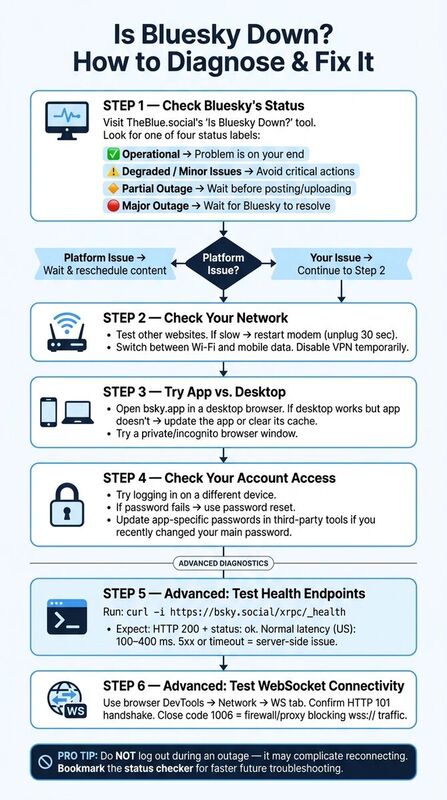
- Check status: Use TheBlue.social's "Is Bluesky Down?" tool to see if Bluesky is operational, degraded, partially down, or in a major outage.
- Test your network: If Bluesky is up but still not working for you, switch between Wi-Fi and mobile data or restart your router.
- App vs. Desktop: Access Bluesky via the desktop site (bsky.app). If the desktop works but the app doesn't, update the app or clear its cache.
- Check the technical layer: For persistent issues, query Bluesky's health endpoint or inspect WebSocket connectivity with
curl, browser dev tools,wscat, orwebsocat. - Account-Specific Problems: If login fails, reset your password or try logging in on another device. Ensure third-party app passwords are updated if recently changed.
Avoid logging out during an outage. If auth is degraded, logging back in can be the hardest part.
How To Fix Bluesky App Not Working 2026 | Bluesky Not Opening Problem Fix
How to Check If Bluesky Is Down
Before rebooting your router or reinstalling the app, confirm whether Bluesky itself is having problems. A dedicated Bluesky status checker is faster than a general outage site because it tests the service you care about.
Using TheBlue.social's Status Checker
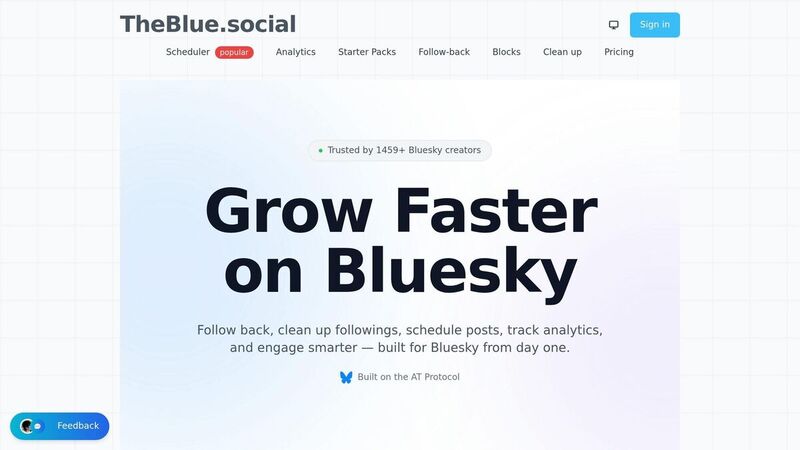
Open TheBlue.social's "Is Bluesky Down?" tool. It runs automated checks against Bluesky and shows the current status.
If everything is running smoothly, you'll see a message like this:
"✓ Bluesky is Currently Online - All systems are operational. Bluesky's servers are responding normally and the service is fully accessible." [1]
If there's an issue, the tool will clearly indicate it. Here's a quick guide to the status labels and what they mean:
| Status Label | What It Means | What You Should Do |
|---|---|---|
| Operational | Bluesky is functioning normally | Check your device or network |
| Degraded / Minor Issues | Bluesky is up but may be slow or partially broken | Avoid critical actions; try again in a bit |
| Partial Outage | Some features (e.g., posting, media uploads) aren't working | Wait before posting or uploading |
| Major Outage | Significant problems confirmed across the platform | Hold tight until Bluesky resolves the issue |
If the tool says Bluesky is fine but you still have trouble, move to your network, browser, or account.
Checking Network Metrics with TheBlue.social
If Bluesky's status says "up" but feeds still load slowly or posts fail, check the Bluesky Network Statistics tool. It shows real-time activity across the network.
Look for unusual dips in activity, especially during busy hours. Flat or near-zero metrics can point to a wider issue before it is obvious everywhere. If the metrics look normal and status is healthy, troubleshoot your setup.
How to Fix Bluesky Connectivity Issues
If TheBlue.social's status checker confirms Bluesky is operational, the problem is probably local: app, browser, network, VPN, or account credentials.
Basic Checks for the Bluesky App and Website
Start with the easiest fixes. Refresh the app by pulling down on mobile or pressing Ctrl+R/Cmd+R in your browser. If the issue persists, force-close the app using your device's usual method and reopen it.
Still not working? Open the desktop site at bsky.app. If the desktop version loads but the app continues to malfunction, update the app or clear its cache. A quick device reboot can also help resolve temporary glitches. If none of these steps work, move on to network and browser troubleshooting. For more detailed platform walkthroughs, check out our Bluesky guides.
Network and Browser Troubleshooting
When basic checks don't solve the issue, it's time to look at your network and browser. Test other websites - if they're slow or unresponsive, restart your modem by unplugging it for about 30 seconds. If other sites work fine but Bluesky doesn't, switch between Wi-Fi and mobile data to see if that makes a difference.
Browser extensions and VPNs can interfere with Bluesky API requests. Tools like uBlock Origin or Privacy Badger can block requests in ways that look like an app problem.
Open Bluesky in a private or incognito window. If it works there but not in your regular browser, disable extensions one at a time. If you use a VPN, turn it off temporarily and reload the site.
Verifying Your Bluesky Account Access
If the app and network are functioning but you can't log in, try another device at bsky.app. If you can log in there, the issue may be with your original device or local network. However, if login fails everywhere and shows an "incorrect password" error, use the password reset option to regain access.
Also, don't forget about app-specific passwords. If you use third-party tools like TheBlue.social's scheduler or analytics, these tools rely on separate app passwords, not your main login. If you recently changed your Bluesky password, those app-specific passwords might need updating. To fix this, go to Bluesky's security settings, regenerate the app password, and update it in any connected services.
Advanced Troubleshooting for Technical Users
If the usual fixes do not work, check the technical layer. Bluesky runs on the AT Protocol (ATProto), which separates identity, data storage, and application services. A failure can be DNS, HTTPS API, auth, or WebSocket traffic. Each looks different.
Checking Bluesky's Health Endpoints
A quick way to verify server status is by querying Bluesky's health endpoint. Open your terminal and run:
curl -i https://bsky.social/xrpc/_health
If everything is functioning, you'll get an HTTP 200 response with a JSON body. Look for a status value of "ok" and check dependency statuses. For example, if search or feed shows "degraded" while status still says "ok", it explains why your timeline might not refresh even though login and posting still work. A 5xx response or a timeout suggests a server-side issue or a network problem between you and Bluesky.
To measure latency, prepend time to the command. Normal latency in the U.S. ranges from 100-400 ms. Anything significantly higher could indicate routing problems.
Testing WebSocket Connectivity
Real-time features like live feed updates and notifications rely on WebSocket connections, not standard HTTP. Sometimes, HTTP endpoints can appear fine while WebSocket connections fail, causing features like your feed to stop updating.
To check WebSocket health, use your browser's Developer Tools. Under the Network tab, filter by WS and confirm that the WebSocket handshake returns HTTP 101 and that messages stream consistently. If the connection closes right away, note the close code: a 1006 usually means the connection was dropped by a firewall or proxy blocking wss:// traffic. In this case, the issue is likely with your network setup rather than Bluesky.
For command-line testing, tools like wscat or websocat can help. If Bluesky's HTTP health endpoint works but WebSocket tests fail, it's probably a firewall or proxy issue - something worth addressing with your IT team if you're on a corporate or restricted network.
Using TheBlue.social to Monitor Multiple Platforms
If your diagnostics point to a local problem, cross-check other platforms. TheBlue.social has free status checkers for X (Twitter), LinkedIn, and Pinterest. If several platforms are slow from the same network, I would suspect your ISP, VPN, DNS, or router before blaming Bluesky.
For teams managing Mastodon alongside Bluesky, TheBlue.social also monitors specific instances like Mastodon.social, Hachyderm.io, and Fosstodon.org.
Use these alongside terminal diagnostics. If both your curl tests and TheBlue.social show Bluesky as down, it is a platform issue. If TheBlue.social reports Bluesky as healthy but your WebSocket tests fail, the problem is probably your setup.
Keeping Your Bluesky Presence Active During an Outage
Once you've confirmed that Bluesky is experiencing an outage, it's time to adjust your content strategy to keep things running smoothly.
Pausing or Rescheduling Your Content
After verifying the outage using our status checker, stop any scheduled Bluesky posts immediately. Instead of deleting them, move these posts to your queue for later publication. This ensures your efforts aren't wasted during the downtime.
To maintain your campaign's momentum, consider repurposing your content for other platforms. With tools like TheBlue.social's cross-posting scheduler, you can share your posts on X (Twitter), Threads, Instagram, LinkedIn, Pinterest, or Mastodon. Once Bluesky's service stabilizes, you can resume publishing your queued posts.
Finally, take a moment to assess how the outage has impacted your engagement and adjust your approach accordingly.
Analyzing Post-Outage Engagement
When Bluesky is back online, dive into your engagement metrics using TheBlue.social's Bluesky analytics. Look for any declines in likes, reposts, replies, or follower growth during the downtime.
To regain traction, focus on resharing posts that performed well in the past or those that missed their audience because of the outage. When resharing, tweak the copy slightly to avoid looking repetitive to followers who were active during the downtime. A good tactic is to compare these posts with similar content from the same day of the previous week to spot patterns.
Use these insights to refine your strategy and improve future engagement.
Preparing Content with TheBlue.social Utility Tools
Bluesky downtime can be a great opportunity to prep for the future. Use tools like the Generate Alt Text tool to create alt text for images or the Profile Picture Editor to enhance your profile image. These tools work independently of Bluesky's servers, so you can stay productive even during an outage.
Take advantage of the downtime to get ahead on your content planning and ensure you're ready when Bluesky is back up and running.
Conclusion: Staying on Top of Bluesky Issues
My rule is simple: check status first, then troubleshoot locally.
If Bluesky is down, pause scheduled posts and wait. If Bluesky is healthy, test your app, browser, VPN, DNS, and account access. The Bluesky Network Statistics page is useful when status looks healthy but the network feels strange.
For quick access next time, bookmark the status checker and network stats page. These tools will help you troubleshoot faster and get back to engaging with your audience.
FAQs
How accurate is TheBlue.social's Bluesky status checker?
It reports whether Bluesky is operational, degraded, partially down, or in a major outage. It also shows response timing and when the last check ran.
What should I do if Bluesky works on desktop but not in the app?
If Bluesky works on desktop but not in the app, check status first. If there is no outage, try this:
- Test other apps to see if they work.
- Restart your router or switch to a different network.
- Make sure your Bluesky app is updated to the latest version.
Still having trouble? Clear the app cache, reinstall the app, or reach out to Bluesky support for help.
Why won't Bluesky load on Wi-Fi but works on mobile data?
If Bluesky works on mobile data but not Wi-Fi, the issue is probably your network. Check Bluesky status first. If Bluesky is healthy, restart your router, try a different DNS resolver, disable VPN/proxy tools, or test from another device.