Checklist for Accessible TikTok Videos
Last updated: June 14, 2026
Accessible TikTok videos are easier to watch, understand, and reuse across platforms. I would start with captions, clear audio, readable text, and plain descriptions of important visuals.
- Add Captions: Use TikTok's auto-captioning tool, ensure proper timing, and choose high-contrast fonts for clarity.
- Enable Text-to-Speech: Convert on-screen text into audio for users with visual impairments.
- Use High-Contrast Colors: Ensure text and graphics are easy to see, even in different lighting conditions.
- Describe Visual and Audio Elements: Include descriptions of actions, background sounds, and key visuals.
- Write Alt Text: Provide concise, meaningful descriptions for images to support screen readers.
- Test for Accessibility: Use tools like screen readers and contrast checkers to review your content before publishing.
- Update Older Videos: Add captions or pinned comments to improve accessibility on past uploads.
TheBlue.social does not edit TikTok videos or turn on TikTok accessibility settings. It helps with the surrounding work, including alt text drafts, OCR for images with embedded text, link previews, hashtags, and scheduling supporting posts across connected accounts.
What Are TikTok's Newest Accessibility Features?
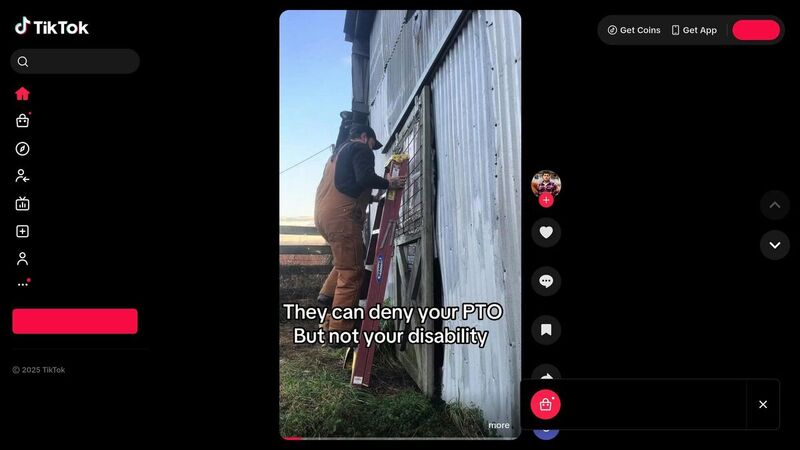
Add Captions to Your Videos
Captions make TikTok videos usable for viewers who are deaf or hard of hearing. They also help people watching with sound off or in a noisy place. Use TikTok's captioning tools, then review the text before publishing.
Start with this basic caption workflow.
Turn On TikTok's Auto-Captions
TikTok’s auto-captioning feature uses speech recognition to transcribe your video’s audio automatically. After recording or uploading your video, head to the preview screen and tap the "Captions" button on the side panel to generate captions[2]. If it’s your first time using this feature, TikTok will ask you to opt in. Once enabled, you can select a preferred language for your captions to improve transcription accuracy.
Before you finalize, review the generated captions carefully. Look out for misheard words, punctuation errors, or awkward timing, and make edits as needed to ensure your captions are polished and accurate[2].
Edit Caption Style and Position
To make your captions easy to read, focus on contrast and clarity. According to WCAG guidelines, caption text should meet a 4.5 to 1 contrast ratio against its background[1]. High-contrast combinations, like white text on a dark background or black text on a light background, work well. Tools like WebAIM can help you double-check your choices.
Keep in mind that captions might look different depending on the screen or lighting conditions, so test their visibility on multiple devices. Plan your video layout to leave about 20% of the screen space for captions. This ensures your visuals remain clean and your captions stay readable.
For fonts, stick to simple, clear options in an appropriate size. Avoid decorative or overly stylized fonts that could make your captions harder to read.
Match Captions to Audio Timing
Captions should appear with the audio they describe. After generating auto-captions, preview the video and adjust lines that appear too early, too late, or too briefly.
Don’t forget to include descriptions for key background sounds or music cues. For example, add text like "[doorbell rings]" or "[upbeat music plays]" so viewers relying on captions can fully grasp the audio elements of your video. These small details can make a big difference in creating a more engaging and inclusive experience.
Make Audio Content Accessible
Making audio content accessible means giving viewers more than one way to follow the message. Captions help deaf and hard-of-hearing viewers, but they also help people watching in noisy rooms, people learning the language, and people who prefer to read along.
Start with captions, then add text-to-speech or spoken descriptions when important information is only visible on screen.
Enable Text-to-Speech
TikTok’s text-to-speech feature converts overlays into spoken audio. To use it, add an overlay, tap it, and select text-to-speech [2]. Keep copy short and visible long enough to read. Pair spoken overlays with reviewed captions when the message matters.
Record Clear Audio
Clear audio forms the backbone of accessible content. When your audio is crisp and easy to understand, TikTok’s auto-captioning tool can generate accurate captions with less need for editing. To achieve clear audio, record in a quiet environment and use a close-range or directional microphone to capture dialogue effectively. Plan your key messages in advance to maintain clarity, and take time during post-production to balance audio levels. Ensure that dialogue stands out over background music or sound effects for a consistent listening experience. Before publishing, test your audio on various devices, especially mobile phones, to confirm it sounds balanced and clear across different platforms.
Caption Background Sounds
Background sounds, music, and effects bring emotional depth to your videos, but deaf and hard-of-hearing viewers can miss them. Add short visual descriptions for important sounds.
Describe music with cues like "[upbeat pop tune]" or "[mellow acoustic guitar]." Add sound cues like "[dog barking]" or "[applause]" when they matter. Follow the same rules as dialogue captions: show each cue for 3-4 seconds when the sound occurs, and reserve screen space so captions do not cover the main visual.
Create Visually Accessible Content
Visual accessibility starts with footage people can process comfortably. Avoid rapid flashing, keep text readable, and give captions enough space. People with photosensitive epilepsy, low vision, or color blindness can be blocked by choices that look harmless in a fast edit.
This section focuses on practical visual checks before publishing.
Avoid Flashing Lights and Strobes
Flashing lights or strobe effects can be harmful to viewers with photosensitive epilepsy, potentially triggering seizures. Platforms like TikTok have systems in place to detect such effects and issue photosensitivity warnings, allowing users to adjust their settings or skip the video altogether[2]. To protect your audience, avoid using flashing effects that occur more than three times per second. If your vision for the video includes dynamic visuals, opt for smoother transitions, gradual lighting changes, or color fades instead. Keep transitions simple - limit the styles to two or three per video. Research shows that videos with clear, smooth visual progression retain viewers 32% longer[1].
Use High Contrast Colors
High-contrast color schemes help viewers distinguish text, graphics, and other visual elements. Aim for a contrast ratio of at least 4.5 to 1 for text and graphics[4]. Dark text on a light background, or light text on a dark background, is usually easier to read.
Do not rely only on color to carry meaning. Combine colors with labels, icons, or patterns. Use simple fonts, test overlays on a phone screen, and check the video in different lighting.
Describe Visual Actions
Describe visual actions when the action carries the meaning. In a cooking video, saying “I’m mixing the dry ingredients with the wet ingredients” gives audio-first viewers the missing context.
For on-screen text, use TikTok’s text-to-speech feature when it matters. Keep overlays concise, leave them on screen long enough to read, and reserve space for captions. If a sound matters, include a short cue such as "[door slams]" or "[phone buzzes]".
Write Alt Text and Descriptions
Alt text and metadata work quietly in the background but play a big role in making your TikTok content accessible to all users while improving its visibility. These tools help screen readers convey visual details to users with visual impairments and enable TikTok's algorithm to categorize and recommend your videos more effectively. By incorporating accessibility features like alt text and well-crafted descriptions, engagement can increase by up to 40% across all viewer groups [1]. Here's how you can create alt text and descriptions that enhance both accessibility and discoverability.
Write Alt Text for Images
Alt text, or alternative text, provides short yet meaningful descriptions of images for screen readers [3]. On TikTok, alt text serves two purposes: it makes your content accessible to users relying on assistive technologies and boosts discoverability through search engines. To add alt text, upload your image, tap "Next", and then choose "More options" [2]. Use TikTok's 300-character limit wisely, sticking to essential details while keeping descriptions concise and easy to understand [2].
Good alt text is clear, specific, and focused on important details rather than decorative elements [3]. Avoid vague phrases like "photo" or "image." Instead, describe the scene in detail. For example, instead of "person at desk", try "woman in a blue blazer sitting at a wooden desk with a laptop and coffee cup." This level of clarity helps users grasp the image's context and its role in your video. If your caption already explains the image, avoid repeating information in the alt text [3].
Writing descriptions for every image can be slow, especially when you post often. TheBlue.social's free alt text generator can draft a description. Review it before publishing. For images with embedded text, the OCR tool extracts the text so you can include the important parts accurately.
Format Hashtags and Descriptions
Hashtags and video descriptions do more than boost discoverability - they also make your content more accessible. Use camel case for hashtags (e.g., #DigitalMarketingStrategy) to ensure screen readers can read each word correctly [3]. This approach also improves readability for everyone and is widely recommended across social platforms [3].
Your video description should summarize the main content, highlight key messages, and provide any extra context that might not be obvious from the visuals [3]. Use line breaks to organize ideas and make descriptions easy to scan. Add relevant hashtags in camel case, and include timestamps if your video covers multiple topics. Stick to straightforward language to ensure users with cognitive disabilities can follow along. Well-written descriptions not only improve accessibility but also help TikTok's algorithm correctly classify your content for better recommendations [3].
Think about what someone who can't see the video would need to know. Describe key visual elements, actions, or on-screen text that captions might miss. For example, if your video includes important text overlays, mention them in the description.
Optimize Thumbnails and Metadata
Just like captions clarify audio, thumbnails and metadata help people understand the video before they watch. Design thumbnails that are visually clear and high-contrast. Use color combinations with at least a 4.5 to 1 contrast ratio between text and background elements [1]. Avoid relying solely on color to carry meaning. Use tools like WebAIM to check contrast [1].
Metadata includes all the descriptive information about your video, such as titles, descriptions, captions, and alt text for images [2]. TikTok's accessibility tools allow you to add chapter markers for longer videos, making it easier for viewers to navigate [1]. Enable auto-captions and review them for accuracy, as search engines index this metadata, which also supports TikTok's accessibility features [1]. Consistent formatting and visual cues in your metadata can help users with cognitive disabilities engage more easily [1].
Test thumbnails and metadata on different screen sizes before publishing [1]. This catches low contrast, tiny text, and descriptions that do not match the video.
Test and Update Your Videos
Ensuring your TikTok videos are accessible is a critical step before hitting publish. By testing for accessibility, you can catch potential issues early on, making your content more engaging for all viewers. Plus, revisiting and updating older videos can expand your reach and improve the overall performance of your content library.
Use Accessibility Testing Tools
Start by activating your device's screen reader to review how your video is presented. Pay attention to how captions are read aloud, confirm that alt text provides meaningful descriptions rather than generic placeholders, and check that interactive elements like buttons or links are properly labeled [1][2].
During editing, tools like WebAIM can help check whether text overlays meet the WCAG-required 4.5 to 1 contrast ratio [1]. It’s also smart to view your video on different devices and in varying lighting conditions to ensure it’s visible in all environments [1].
For alt text, TheBlue.social's free alt text generator can create a draft. If your image contains text, use the OCR tool first, then write the final description with the extracted text in front of you.
Test your videos with accessibility settings enabled, such as closed captions, text-to-speech functionality, and screen reader compatibility [1]. Preview your content with captions turned on so you can catch timing, readability, and overlap issues before publishing.
Once internal testing is done, gather feedback from your audience to refine your approach.
Ask Viewers for Feedback
Invite your audience to provide accessibility feedback. Add a call-to-action in your video descriptions asking viewers to report any issues they encounter. You can also set up a dedicated email or social media channel for accessibility-related feedback and monitor comments for suggestions [1].
When collecting input, ask specific questions about caption accuracy, audio quality, visual clarity, and whether animations or transitions cause difficulties. Document recurring issues and prioritize fixes. TikTok creator insights show that videos with clear visuals and accessibility features retain viewers 32% longer, proving that accessibility directly impacts engagement [1].
Create a feedback loop by regularly reviewing suggestions and implementing changes based on common themes. For example, if viewers frequently mention that captions are out of sync or text overlays are hard to read, adjust your production process accordingly. Acknowledge and thank viewers who provide feedback, and let them know when you’ve made improvements. This builds trust and encourages ongoing dialogue about accessibility.
Track how accessibility updates impact performance metrics like watch time, likes, comments, and shares. Brands that incorporate interactive accessibility features report a 23% boost in content engagement across diverse audiences [1]. If certain features consistently improve performance, make them a standard part of your production process.
Update Old Videos
Don’t stop at new content - revisit your older videos to bring them in line with current accessibility standards. Audit your video library to identify content that lacks captions, has poor contrast, or contains other accessibility gaps [1]. Keep an eye out for text overlays that obstruct key visuals or don’t meet contrast guidelines.
While TikTok doesn’t allow full re-editing of published videos, you can still enhance accessibility. For instance, use TikTok’s auto-captioning tool to add captions to older videos, then manually review and correct them for accuracy [2]. Reserve about 20% of the screen for captions and ensure text elements remain visible for 3–4 seconds [1]. If your videos include flashing effects, add photosensitivity warnings using TikTok’s built-in tools [2].
You can also pin comments with accessibility information to provide additional context. For example, if a video includes critical visual details that aren’t described in the audio, pin a comment explaining those elements. Creating follow-up videos with transcripts or added descriptions for popular content is another way to make older videos more inclusive.
Maintain an accessibility audit spreadsheet to track which videos include features like captions, alt text, and high-contrast overlays. Note publication dates, the accessibility features present, and any issues that need addressing. This helps you prioritize updates and maintain consistency across your library.
Test updated videos just as you would new ones - use screen readers, verify contrast ratios, and check caption accuracy. Brands that adopt cross-platform accessibility features report a 31% broader reach compared to those sticking with standard formatting [1]. By systematically updating older videos, you create a more inclusive library that supports the 1.3 billion people globally living with disabilities [1].
Conclusion
Accessible TikTok videos are mostly about doing the basics every time: captions, readable overlays, clear audio, no unsafe flashing, and useful descriptions.
Do the TikTok-specific work in TikTok. Use TheBlue.social for the supporting assets and cross-posting prep: alt text drafts, OCR, Open Graph previews, hashtags, and scheduled posts around the TikTok content.
TikTok’s built-in tools make the basics easier, including auto-captions, photosensitivity warnings, and text-to-speech [2]. Combine those with manual review, clear contrast, and plain descriptions.
Start small. Add captions to the next video, review them, and leave enough screen space for people to read them.
If you are sharing the same campaign outside TikTok, use TheBlue.social to prepare the link preview, image description, hashtags, and scheduled posts for the connected networks.
FAQs
What steps can I take to make my TikTok videos accessible to everyone, including people with disabilities?
To make your TikTok videos more inclusive and accessible to a wide audience, consider these essential tips:
- Include captions: Make sure to add accurate captions for any spoken content. This helps viewers who are deaf or hard of hearing follow along with your videos.
- Keep visuals clear: Avoid overly busy visuals. Ensure that any important text or graphics are easy to read and don't get lost in the background.
- Add descriptive alt text: If your video contains images or text overlays, provide alt text to describe them. This makes the content more accessible to visually impaired viewers.
These small adjustments remove common barriers.
How can I use TikTok's auto-captioning tool to make my videos more accessible?
TikTok's auto-captioning tool is useful, but it still needs review. Start with clear audio, generate captions, then fix names, punctuation, timing, and any words the tool misheard.
Adding captions does more than support viewers who are deaf or hard of hearing - it also appeals to people watching without sound. Accurate, easy-to-read captions can help your content connect with a broader audience.
Why should I test my TikTok videos for accessibility, and how can I gather feedback to improve them?
Accessibility testing catches problems you will miss while editing. Look for unreadable captions, low contrast, missing sound cues, or important visual details that are never described.
To get valuable feedback, consider engaging your audience directly through comments or polls. You can also share your videos with friends or members of your community who can offer constructive suggestions. Focus on areas like captions, audio quality, and visual elements to identify ways to improve and make your content more accessible.