Exporting Bluesky Engagement Data: Tools and Tips
Last updated: April 10, 2026
Exporting your Bluesky engagement data can help you analyze likes, replies, reposts, and quotes to improve your content strategy. For more platform insights, check out our Bluesky guides and FAQs. Whether you're an individual creator or part of a team, there are several ways to access and use this data effectively. Here's a quick summary of the key methods:
- Bluesky's Built-In Export: Download a CAR file containing your public data. This method requires technical tools to convert the file into readable formats like JSON.
- TheBlue.social: Offers user-friendly analytics, heatmaps, and automated reports. Free and Pro plans are available, with the latter costing $20/month for extended features.
- Browser Extensions: Tools like the Bluesky Posts Exporter let you quickly export posts and engagement data into CSV or Excel files.
- API-Based Tools: Platforms like CommentPicker provide advanced data exports for specific tasks, such as follower lists or repost tracking.
Each method has its strengths. For quick insights, browser extensions or web tools are ideal. For deeper analysis and long-term tracking, TheBlue.social stands out with its real-time dashboards and email updates. Always use app-specific passwords to protect your account when using third-party tools.
How To Scrape BlueSky Posts (No Code Needed)

Using Bluesky's Built-In Export Features
Bluesky provides a built-in method to export your data, primarily aimed at developers and for account portability rather than casual analytics. This is made possible through the AT Protocol (Authenticated Transfer Protocol), which allows you to download your entire public repository in a CAR file - a Content Addressable Archive format from the IPLD ecosystem [3][4]. Here's a breakdown of how to use this feature and the challenges you might encounter.
How to Export Data Using CAR Files
Exporting your data as a CAR file is straightforward. Open the Bluesky app or web version, go to the menu, access Settings, navigate to Account, and choose Export my data. From there, select Download CAR file, pick a destination for the file, and confirm the download [3]. The downloaded file contains your public engagement data stored in binary CBOR blocks [4].
Alternatively, you can directly access your repository using this URL:https://bsky.social/xrpc/com.atproto.sync.getRepo?did=[Your_DID]
Replace [Your_DID] with your Decentralized Identifier (DID) [5].
Drawbacks of Native Export Options
While this export feature is useful, it comes with some notable limitations. First, CAR files are not human-readable. To make sense of the data, you'll need specific SDKs or parsing tools to convert it into a more usable format, such as JSON. As Bluesky's documentation explains:
CAR files are a standard file format from the IPLD ecosystem... well-suited for efficient data processing and archival storage, but they're not the most accessible to developers [4].
Another drawback is that the export excludes media files like images and videos. To retrieve these, you'll need to use the com.atproto.sync.getBlob API endpoint separately [3][4]. Additionally, private data such as mute lists and list subscriptions are not included in the export [4].
Lastly, this feature is still in beta, meaning it lacks user-friendly tools for broader accessibility [3][4]. Teams relying on immediate, easily analyzable data may find this process time-consuming, as it requires extra effort to convert and interpret the data. For those needing quicker insights, alternative tools might provide a more efficient solution.
Exporting Data with TheBlue.social
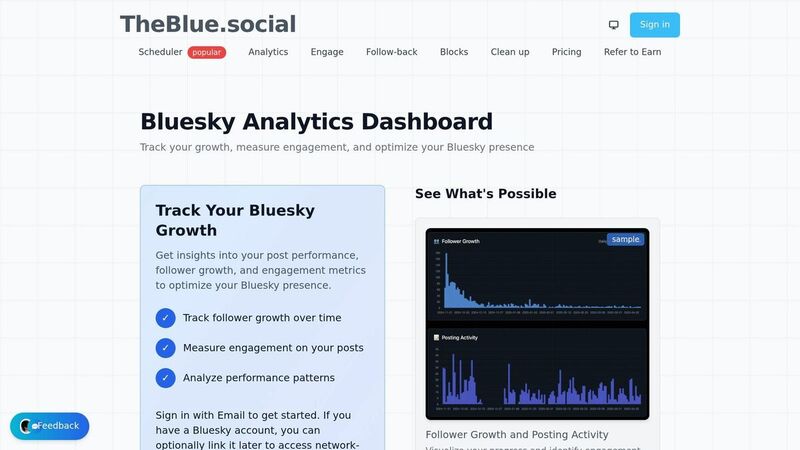
TheBlue.social makes it simple to export and analyze your Bluesky engagement data. Unlike CAR files, which require technical know-how to interpret, this platform offers easy-to-read analytics and automated reports that are ready for team collaboration. It's a popular choice among active Bluesky creators, with widespread use across the community.
Connecting Your Bluesky Account to TheBlue.social
Getting started is straightforward. Log in using your email or Google account, then link your Bluesky profile using a dedicated app password (details in the Protection section). Once connected, TheBlue.social begins tracking your activity - likes, replies, reposts, quotes, and even follower history. Analytics are updated almost in real-time, and you can immediately access and export your engagement metrics.
Using Bluesky Analytics to Export Metrics
With TheBlue.social's Bluesky Analytics, you can explore engagement metrics for the past 7, 30, or 90 days. The dashboard spotlights your top-performing posts and tracks follower growth trends, helping you understand what resonates with your audience. A standout feature is the "When Posts Get Liked" heatmap, which pinpoints the times your followers are most active - perfect for scheduling posts to maximize engagement.
For those who prefer automated updates, TheBlue.social delivers weekly growth reports straight to your inbox. These concise emails highlight new followers, your best posts, and overall engagement trends in just a quick read. The free plan includes 7-day analytics and basic features, while the Pro plan ($20/month) unlocks 30- and 90-day analytics, along with expanded tools for managing followers.
Other Helpful Tools on TheBlue.social
Beyond analytics, TheBlue.social offers additional tools to simplify Bluesky account management and streamline data sharing. The Bluesky Handle Checker helps you secure consistent branding by checking username availability across platforms. Meanwhile, the Bluesky Network Statistics tool provides real-time insights into platform-wide data, giving context to your individual performance.
To manage your network, tools like the Follow-Back Manager and Clean Up Followings make organization a breeze. Plus, with over 91,836 indexed Starter Packs, TheBlue.social supports community discovery like no other platform.
Third-Party Tools and Browser Extensions
For teams looking to dive deeper into Bluesky engagement data, third-party tools can take the platform's native capabilities to the next level. These tools allow users to export detailed engagement data through browser extensions or API integrations, perfect for analyzing posts, feeds, or user interactions. Below, we’ll look at two standout options: a Chrome extension for quick exports and API tools for more advanced, automated data collection.
Bluesky Posts Exporter Chrome Extension
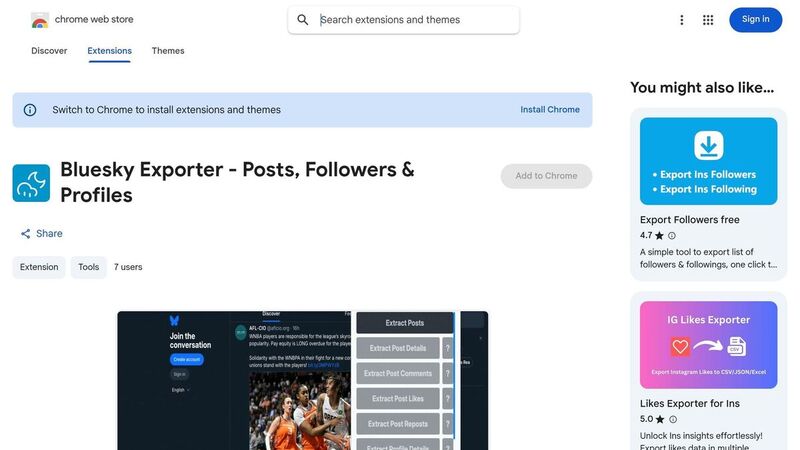
The Bluesky Posts Exporter is a free Chrome extension trusted by over 5,000 users, boasting a flawless 5/5 star rating[2]. It processes all data locally, ensuring user information stays secure. With this tool, you can export posts from profiles, feeds, lists, or starter packs into formats like CSV, Excel, or JSON. These files are compatible with popular spreadsheet programs like Google Sheets and Excel.
"No more endless scrolling and manual copying. This tool lets me export posts from multiple sources in seconds, saving me hours of tedious work!" - Sarah K., Content Creator[2]
Getting started is simple. Install the extension from the Chrome Web Store, navigate to a Bluesky page, copy its URL, and hit export. The tool captures all post details, including timestamps and engagement metrics - ideal for spotting trends or identifying high-performing content. Unlike some tools that limit exports to 50 items, this extension imposes no such restrictions.
API-Based Export Using AT Protocol Tools
For those who need to automate data tracking over time, API-based tools built on the AT Protocol provide a more powerful solution. One example is CommentPicker, a web-based platform that exports followers, following lists, reposts, likes, and feed posts into CSV or XLSX formats. It holds a solid 9/10 rating from 34 reviews. While the free plan allows 50 items and one daily export, the Premium plan unlocks unlimited exports for $9.99/month[1].
These API tools are particularly useful for gathering data Bluesky doesn’t natively provide. For instance, Bsky Hub has tracked over 7,000 profiles and analyzed more than 245,000 posts, offering insights like follower growth over time - data Bluesky itself doesn’t track[6]. When using any API-based tool, make sure to connect via a Bluesky App Password rather than your primary login credentials for added security[6].
Comparing Different Export Methods
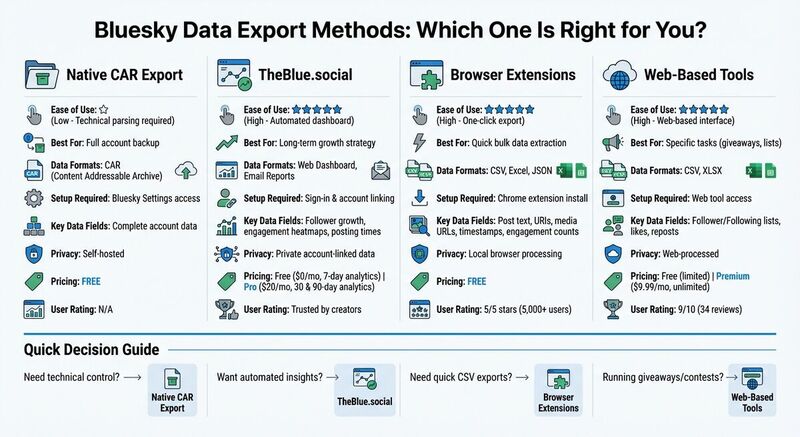 Picking the right data export method can make a huge difference in how smoothly your team analyzes performance and tracks progress on Bluesky.
Your choice should align with your team's technical know-how, the kind of data you need, and how you prefer to work. Each method comes with its own perks, balancing ease of use, compatibility with different formats, and the specific metrics it captures.
Native CAR file exports are ideal for backing up entire accounts or transferring data, but they demand technical skills to convert the data into usable formats. TheBlue.social takes a different approach, focusing on visual analytics via web dashboards and automated email reports. This makes it perfect for ongoing performance tracking without the hassle of manual exports. On the other hand, browser extensions like the Bluesky Posts Exporter are the quickest way to grab raw data in formats like CSV, Excel, or JSON - all processed locally on your browser. Finally, web-based tools such as CommentPicker are tailored for specific tasks like exporting follower lists or post likes. These tools often offer free versions with limitations, while premium access costs $9.99/month.
The formats provided by these methods vary widely. Native exports rely on the CAR format, which is more technical, while third-party tools typically produce user-friendly CSV, XLSX, or JSON files that work seamlessly with Microsoft Excel, Apple Numbers, or Google Sheets. TheBlue.social skips downloadable files altogether, instead offering visual dashboards and email reports updated multiple times an hour for near real-time insights. The table below highlights the key differences among these methods.
Export Methods Comparison Table
| Feature | Native CAR Export | TheBlue.social | Browser Extensions | Web-Based Tools |
|---|---|---|---|---|
| Ease of Use | Low (Technical parsing required) | High (Automated dashboard) | High (One-click export) | High (Web-based interface) |
| Best For | Full account backup | Long-term growth strategy | Quick bulk data extraction | Specific tasks (giveaways, lists) |
| Data Formats | CAR (Content Addressable Archive) | Web Dashboard, Email Reports | CSV, Excel, JSON | CSV, XLSX |
| Setup Required | Bluesky Settings access | Sign-in & account linking | Chrome extension install | Web tool access |
| Key Data Fields | Complete account data | Follower growth, engagement heatmaps, posting times | Post text, URIs, media URLs, timestamps, engagement counts | Follower/Following lists, likes, reposts |
| Privacy | Self-hosted | Private account-linked data | Local browser processing | Web-processed |
| Pricing | Free | Free plan ($0/mo, 7-day analytics); Pro ($20/mo, 30 & 90-day analytics) | Free | Free (limited); Premium ($9.99/mo, unlimited) |
| User Rating | N/A | Trusted by creators | 5/5 stars (5,000+ users) | 9/10 (34 reviews) |
This breakdown helps teams pinpoint the best option for their specific analysis and reporting needs.
If your team relies on spreadsheet tools for collaboration, browser extensions and web-based tools are a natural fit, offering immediate compatibility with programs like Excel or Google Sheets. For more strategic insights, such as identifying the best times to post or tracking follower trends over time, TheBlue.social’s engagement heatmaps and analytics windows (ranging from 7 to 90 days) provide valuable perspectives. Whether you need raw data for custom analysis or prefer visual dashboards for ongoing monitoring, the right tool is out there to match your goals.
How Teams Can Use Exported Data
Once you've exported your Bluesky engagement data, the real work begins: organizing it in a way that drives smarter collaboration and sharper strategies. Whether you're measuring campaign success, pinpointing your most engaged followers, or fine-tuning your posting schedule, how you handle the data can make or break your team's efforts.
Organizing CSV Files for Team Analysis
The key to effective teamwork is a clear and structured dataset. Include essential engagement metrics like likes, reposts, replies, and quotes alongside user details such as handle, display name, follower count, and account creation date. This combination helps identify who’s interacting with your content and how.
Using timestamps in ISO 8601 format is a great way to align engagement data with specific campaigns or timeframes. Instead of cramming everything into one massive file, consider splitting it into separate CSVs - one for posts and another for user metadata. You can also sort by username, display name, or account creation date to make it easier to analyze different audience segments.
To ensure smooth sharing and collaboration, stick to common formats like CSV or XLSX, which are compatible with tools like Excel, Google Sheets, or Numbers. If your team has access to technical resources, Python’s pandas library can simplify the process of cleaning and exporting data. For instance, methods like to_pandas().to_csv() can quickly transform complex data into a user-friendly format. Once standardized, sharing these files via email, cloud platforms, or project management tools becomes a breeze.
With your data neatly organized, the next step is to turn those numbers into visuals that tell a clear story.
Creating Charts and Visualizations
Visualizing data helps uncover trends that raw numbers might hide. By creating charts, you can transform your engagement metrics into easily digestible insights that complement Bluesky's analytics tools on TheBlue.social. Go beyond just tracking likes - include replies, reposts, and quotes to get a fuller picture of how your audience interacts with your content. Comparing these metrics over intervals like 7 days, 30 days, or 90 days can reveal patterns, such as short-term spikes or steady growth over time.
Heatmaps are especially helpful for timing your posts. They show when your followers are most active and when your posts generate the most engagement, helping you zero in on the best times to publish. Additionally, sorting posts by metrics like likes or reposts can spotlight outliers that deserve deeper analysis.
For ongoing tracking, consider setting up automated weekly reports. These can summarize new followers, top-performing posts, and other key metrics without requiring constant manual updates. Tools like Bluesky Analytics provide frequent data refreshes - sometimes multiple times an hour - ensuring your team always has the latest insights. Whether you’re using spreadsheet software, Python libraries like matplotlib for custom charts, or visual dashboards, the ultimate goal is the same: turn your data into a compelling story that drives smarter decisions.
Protecting Your Data and Account
When exporting your engagement data, safeguarding it is essential to keep your account secure and ensure your data stays private. Exporting data from Bluesky involves handling sensitive user information and engagement metrics, so taking the right precautions is key. Whether you're an individual user or part of a team, these practices help maintain control over your analytics and protect your account.
Creating Bluesky App Passwords
One rule to live by: never share your primary Bluesky password with third-party tools. Instead, create app-specific passwords. These are separate credentials designed to protect your main account. The best part? They can be revoked instantly without affecting your master password.
For example, tools like TheBlue.social require app-specific passwords instead of your primary login credentials to keep your account safe. If you're unsure how to create one, TheBlue.social provides a step-by-step guide, including a helpful video tutorial. This is especially useful for teams, as each member can have their own app password tailored to specific tasks.
Make it a habit to review your active app passwords regularly. If you're no longer using a specific tool or if a team member leaves, revoke the associated password to close any potential security gaps. This simple step ensures outdated access points don't become vulnerabilities.
Once you've secured your account with app passwords, it's time to focus on safely storing your exported data.
Storing and Sharing Exported Data Safely
After downloading your engagement data - whether in CSV, XLSX, or JSON format - the next challenge is storing and sharing it securely. These files often contain sensitive information like Bluesky user IDs (DIDs), account creation dates, and detailed engagement metrics. Avoid leaving such data in unsecured locations like unencrypted emails or public shared drives.
Instead, store these files in encrypted cloud storage or password-protected team folders. If your team uses secure file-sharing services or project management platforms, those are better options. Also, consider using tools that process data locally on your device. For instance, the Bluesky Posts Exporter Chrome extension, which boasts a 5/5 star rating from over 5,000 users, ensures all data processing happens directly in your browser.
"All data processing happens locally in your browser. No data is stored on external servers, ensuring complete privacy and security of your information." - Bluesky Posts Exporter
When choosing export tools, always check their privacy policies. Look for platforms that clearly state they don’t sell user data and offer private, account-based analytics access. For example, TheBlue.social, trusted by over 1,254 active Bluesky creators, follows a privacy-first approach and never sells your data.
Conclusion
Exporting your Bluesky engagement data doesn’t have to be complicated. Whether you prefer using CAR files, browser extensions, or advanced analytics platforms, the best method depends on what you’re looking to achieve. For creators focused on tracking basic metrics, simple export tools often get the job done. But if you’re managing a team or need deeper insights, a more advanced solution might be the way to go.
TheBlue.social offers a powerful way to turn raw data into insights you can act on. With features like visual dashboards updated multiple times per hour, activity heatmaps showing peak audience activity, and automated weekly reports, it’s designed to make your analytics actionable. Plus, tools like Follow-Back and Clean Up allow you to immediately act on what you’ve learned.
Privacy is a priority, too. By using a dedicated Bluesky app password instead of your main login, your data stays secure and under your control. The free plan provides 7-day analytics and basic management tools, while the Pro plan ($20/month) unlocks 30- and 90-day data histories along with higher limits for bulk actions. This setup ensures you have the tools to fine-tune your engagement strategy.
With these resources, you can track trends, adjust your posting schedule, and grow your community with confidence. Start small, and as your Bluesky presence expands, you’ll have the tools to scale effectively.
FAQs
What’s the easiest way to export Bluesky engagement data into a spreadsheet?
The simplest way to get your Bluesky engagement data is by using tools like the Bluesky Export tool, which allows you to download information such as followers, posts, reposts, and likes in formats compatible with spreadsheets like CSV or Excel. Another option is browser extensions like Bluesky Posts Exporter, which make it easy to quickly export posts or likes. For tracking engagement over time, platforms like TheBlue.social provide dashboards to monitor and export key metrics.
How do I convert a Bluesky CAR export into readable JSON?
To turn a Bluesky CAR export into JSON, start by exporting the data in either CSV or Excel format. Open the file in a spreadsheet tool like Excel or Google Sheets. Once you’ve reviewed and organized the data, use a CSV-to-JSON converter or write a script in a programming language such as Python or JavaScript to handle the conversion. Double-check that the resulting JSON is well-structured and includes all the critical data you’ll need for further analysis.
How can a team securely share exported Bluesky analytics files?
To share exported Bluesky analytics files securely, stick to encrypted or access-controlled platforms. Options like secure cloud storage with restricted access or secure file transfer protocols work well. Stay away from unsecured email or public links, as these can expose sensitive data. Instead, implement measures like access controls, password protection, or encryption to ensure only authorized team members can view the files. This approach keeps sensitive engagement metrics and follower information safe.